How to Use Microsoft Copilot: Beginner’s Guide
Artificial intelligence is making everyday digital tasks easier. Whether you want to write an email, summarize a long document, research a topic, create an image, or organize your ideas, AI assistants can help you get started.
One popular AI assistant is Microsoft Copilot. It can answer questions, help with writing, summarize information, generate images, and work with Microsoft applications, depending on the account and subscription you use.
If you are new to AI, you do not need advanced technical knowledge to start using it. In this guide, you will learn what Microsoft Copilot is, how to access it, how to write effective prompts, and how to use it for everyday tasks.
What Is Microsoft Copilot?
Microsoft Copilot is an AI-powered assistant developed by Microsoft. It uses artificial intelligence to understand questions and instructions and generate helpful responses.
You can interact with Copilot by typing questions or, where available, using voice features. It can help with tasks such as:
- Answering general questions.
- Writing and improving content.
- Summarizing information.
- Brainstorming ideas.
- Researching topics using web information.
- Creating images.
- Helping with productivity and planning.
- Working with Microsoft 365 applications when eligible features are available.
Think of Copilot as a digital assistant that can help you complete different tasks through natural-language instructions.
However, Copilot is not a replacement for human judgment. You should review its answers, especially when accuracy is important.

How to Access Microsoft Copilot
You can access Microsoft Copilot through a web browser, desktop application, or mobile application.
1. Use Copilot on the Web
The easiest way for beginners is to use the web version.
Follow these steps:
- Open Google Chrome, Microsoft Edge, or another web browser.
- Visit the official Microsoft Copilot website: https://copilot.cloud.microsoft
- Open the Copilot chat interface.
- Sign in with your Microsoft account if you want access to account-based features.
- Type a question or instruction in the chat box.
- Press Enter and wait for Copilot to respond.
You can begin with a simple question such as:
“Explain artificial intelligence in simple English for a beginner.”
Copilot will generate a response based on your request.
2. Use the Microsoft Copilot Desktop App
Microsoft also provides a Copilot desktop application for supported Windows and Mac devices.
To get started:
- Open the Microsoft Store on Windows or visit Microsoft’s official download page.
- Search for the Microsoft Copilot app.
- Check that the publisher is Microsoft.
- Install the application.
- Open it and sign in if required.
The available experience can depend on your device, account, region, and app version.
3. Use Copilot on a Mobile Phone
You can also use Microsoft Copilot on supported Android and iOS devices.
Basic steps:
- Open Google Play Store or Apple App Store.
- Search for Microsoft Copilot.
- Check that the app is published by Microsoft.
- Install the official application.
- Open the app and follow the sign-in instructions.
Once you open Copilot, you can ask questions, write prompts, and explore the features available to your account.
Beginner tip: If you are trying Copilot for the first time, start with the web version. You do not need to install additional software just to try basic AI chat.
How to Use Microsoft Copilot Step by Step
After opening Copilot, you can begin with a new chat.
Step 1: Open a New Chat
Start a new conversation so that your instructions are separate from previous topics.
This is useful when you want to work on different activities, such as writing an email, researching a subject, or planning your day.
Step 2: Type a Clear Question
Write what you want Copilot to do.
For example:
“Explain how AI tools can help small business owners. Give me five practical examples.”
Avoid entering only one or two unclear words when you need a detailed answer.
Step 3: Review the Response
Copilot will generate an answer based on your instruction.
Read the response carefully. If it is too long, too short, or difficult to understand, ask Copilot to change it.
Step 4: Ask Follow-Up Questions
You do not need to start a new chat for every small improvement.
For example:
- “Explain this in simpler language.”
- “Give me three real-world examples.”
- “Turn this into a table.”
- “Make the answer shorter.”
- “Add a step-by-step explanation.”
Copilot can use the conversation context to refine its response.
Step 5: Save Useful Results
If Copilot generates something useful, copy the response into a document or another suitable application.
Depending on your account and available features, you may also be able to use file creation, chat history, or other options.
Always review important information before using or sharing it.
Best Ways to Use Microsoft Copilot
Microsoft Copilot can help with many everyday activities. Here are some practical examples beginners can try.
1. Writing Emails
Writing professional emails can take time. Copilot can help you prepare a first draft.
You can ask it to:
- Write professional emails.
- Improve grammar and sentence structure.
- Make a message more polite.
- Create short replies.
- Rewrite informal messages professionally.
Example prompt:
“Write a professional email asking a customer to confirm their appointment. Keep it friendly, clear, and under 100 words.”
Copilot can prepare a draft that you can review and edit before sending.
2. Creating Blog Content
Bloggers and website owners can use Copilot to organize their writing process.
It can help with:
- Generating article ideas.
- Preparing article outlines.
- Suggesting headings.
- Writing introductions.
- Improving readability.
- Creating FAQs.
- Drafting social media captions.
Example prompt:
“Create a detailed beginner-friendly outline for an article about AI productivity tools. Include an introduction, practical examples, benefits, limitations, FAQs, and a conclusion.”
For a professional blog, do not publish AI-generated text without checking it. Add original explanations, useful examples, fact-checking, and your own editorial judgment.
3. Summarizing Long Documents
Sometimes you need to understand a long document quickly.
Copilot can help turn lengthy information into shorter summaries.
Example prompt:
“Summarize this document into ten important points. Use simple English and include the main conclusion.”
If file upload or document features are available in your Copilot experience, you may be able to provide a document directly. Otherwise, you can paste suitable text into the chat.
Avoid sharing confidential or sensitive documents unless you understand the relevant privacy and data-handling rules.
4. Researching Topics
Copilot can help you explore a topic and find information from the web when web search is available.
For example, you can ask:
“Explain how AI automation works. Include beginner-friendly examples and suggest reliable sources for further reading.”
You can use it to:
- Understand unfamiliar subjects.
- Compare different concepts.
- Find background information.
- Prepare research questions.
- Organize information into sections.
Always open and check important sources yourself. An AI-generated answer may contain outdated or incorrect information.
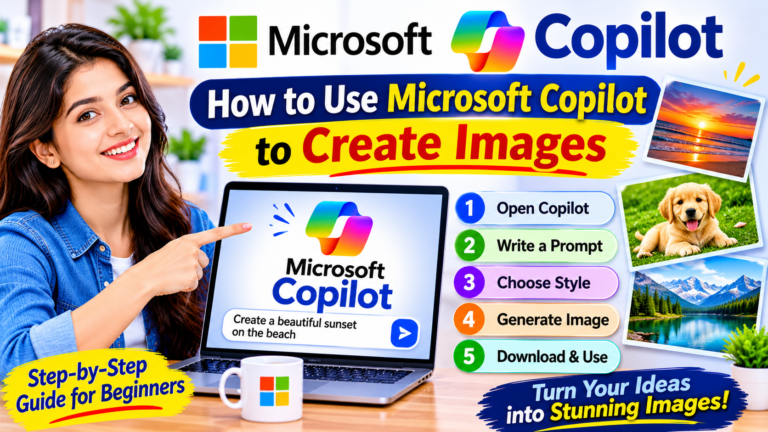
5. Creating Images with AI
Copilot may offer image creation features that allow you to generate images from text descriptions.
For example, you can try this prompt:
“Create a clean educational illustration showing how artificial intelligence helps people with writing, research, and productivity. Use a modern blue and white design.”
For better results, describe:
- The subject of the image.
- The visual style.
- The main objects.
- The intended purpose.
- Any text that must appear.
Image creation availability and usage limits can vary by account, region, and current Microsoft offering.
Before publishing an AI-generated image, check its accuracy, suitability, and any applicable usage terms.
6. Learning New Skills
Copilot can act as a learning assistant for beginners.
You can ask it to explain subjects such as:
- Basic computer skills.
- Artificial intelligence.
- Digital marketing.
- Excel formulas.
- Programming concepts.
- English grammar.
- Online business basics.
Example prompt:
“Teach me the basics of Microsoft Excel as a beginner. Create a seven-day learning plan with one practical exercise for each day.”
You can also ask it to explain difficult concepts using simple examples.
7. Planning Daily Activities
Copilot can help you organize your tasks and create a practical schedule.
Example prompt:
“Create a daily schedule for someone who wants to learn AI tools, write articles, and improve computer skills. Include breaks and realistic time blocks.”
It can also turn rough notes into a checklist or help you prioritize tasks.
8. Improving Social Media Content
Content creators can use Copilot to prepare social media ideas.
For example:
“Create five short social media captions about the benefits of AI tools for beginners. Use a friendly tone and avoid exaggerated claims.”
You can ask it to adapt content for different platforms and audiences.
Review every caption before publishing to make sure it accurately represents your content or business.
How to Use Microsoft Copilot with Word, Excel, and PowerPoint
One of Microsoft’s important advantages is its connection with Microsoft 365 applications.
Depending on your account, subscription, and available features, Copilot may help you work directly inside applications such as Word, Excel, PowerPoint, Outlook, and OneNote.
Microsoft Word
Copilot can assist with document-related tasks.
Examples include:
- Drafting a document.
- Rewriting paragraphs.
- Summarizing long text.
- Improving clarity.
- Creating a first draft from instructions.
Example prompt:
“Write a one-page introduction about the benefits of AI automation for small businesses. Use a professional and beginner-friendly tone.”
Microsoft Excel
Copilot can help you understand and work with spreadsheet information when supported features are available.
Possible tasks include:
- Explaining formulas.
- Identifying patterns.
- Summarizing data.
- Suggesting calculations.
- Helping create charts.
Example prompt:
“Explain how to calculate the total sales from a column of numbers in Excel. Show a simple example.”
Check formulas and calculations before relying on them for business or financial decisions.
Microsoft PowerPoint
Copilot can help prepare presentation content and, where supported, create or edit presentations.
Example prompt:
“Create a presentation outline with eight slides explaining artificial intelligence to beginners. Include a title and three key points for each slide.”
Review the presentation for factual accuracy, formatting, and missing information.
Microsoft Outlook
Copilot can assist with email-related work in eligible Outlook experiences.
Examples include:
- Drafting email replies.
- Summarizing conversations.
- Improving email tone.
- Preparing professional messages.
Example prompt:
“Draft a polite reply explaining that I will review the proposal and respond by Friday.”
Microsoft OneNote
Copilot can help organize notes, ideas, and plans in supported OneNote experiences.
For example:
“Turn these notes into a structured project checklist with clear headings and action items.”
Important: These Microsoft 365 features are not all included in every account or subscription. Check the current eligibility and usage limits before purchasing a plan.
How to Write Better Prompts in Microsoft Copilot
A prompt is the instruction or question you give to an AI assistant.
A clear prompt generally produces a more useful response.
Microsoft describes useful prompt elements such as goal, context, source, and expectations.
You can use the following simple structure:
Goal + Context + Source + Expected Format
For example:
“Write a beginner-friendly article about AI automation for people who are new to technology. Include practical examples and explain the benefits and limitations. Organize the answer using headings, bullet points, and FAQs.”
Here are five tips for writing better prompts:
- Be specific: Explain exactly what you want.
- Give context: Mention the audience and purpose.
- Set the tone: Ask for professional, friendly, or simple language.
- Choose a format: Request a table, checklist, summary, or article.
- Improve the result: Ask follow-up questions when needed.
10 Useful Microsoft Copilot Prompts for Beginners
You can copy and try these prompts.
1. Learning AI
“Explain artificial intelligence in simple language and give five everyday examples.”
2. Writing an Email
“Write a professional email requesting an update on a pending project. Keep it short and polite.”
3. Creating an Article Outline
“Create a detailed article outline about free AI tools for beginners. Include headings, examples, FAQs, and a conclusion.”
4. Improving Grammar
“Correct the grammar in this paragraph and explain the important changes.”
5. Summarizing Information
“Summarize the following text into five key points using simple English.”
6. Learning Excel
“Teach me five useful Excel formulas with simple examples for beginners.”
7. Planning Work
“Create a realistic daily to-do list for someone working from home. Include breaks and priorities.”
8. Generating Image Ideas
“Suggest five educational image concepts for an article about AI productivity.”
9. Learning Digital Marketing
“Create a beginner-friendly seven-day plan for learning digital marketing.”
10. Comparing AI Tools
“Compare Microsoft Copilot and ChatGPT for writing, research, productivity, and everyday tasks. Explain the differences in a balanced table.”
Is Microsoft Copilot Free?
Microsoft offers a free Copilot experience for general questions, writing assistance, web-based tasks, and other supported features.
However, Microsoft also offers paid Microsoft 365 plans and business-related Copilot experiences with additional capabilities.
The available features depend on the account and subscription.
| Version |
|---|
| General use |
|---|
| Microsoft Copilot (free) |
|---|
| General AI chat and everyday assistance |
|---|
| Microsoft 365 individual plans |
|---|
| Eligible Copilot features within Microsoft 365 applications |
|---|
| Microsoft 365 business experiences |
|---|
| Work-related AI features depending on the organization’s license |
|---|
| Microsoft 365 Copilot add-on |
|---|
| Additional business capabilities and integration with organizational data |
|---|
Before choosing a paid plan, check Microsoft’s official pricing, eligibility, and usage limits for your region.
You can begin with the free experience to understand whether Copilot meets your needs.
Microsoft Copilot vs ChatGPT: What Is the Difference?
Both Microsoft Copilot and ChatGPT are AI assistants, but their experiences and integrations can differ.
| Feature |
|---|
| Microsoft Copilot |
|---|
| ChatGPT |
|---|
| AI chat |
|---|
| Yes |
|---|
| Yes |
|---|
| Writing assistance |
|---|
| Yes |
|---|
| Yes |
|---|
| Research assistance |
|---|
| Yes |
|---|
| Yes |
|---|
| Image creation |
|---|
| Available in supported experiences |
|---|
| Available in supported plans and experiences |
|---|
| Microsoft 365 integration |
|---|
| Strong integration with eligible Microsoft apps |
|---|
| Depends on available integrations and tools |
|---|
| Best suited for |
|---|
| Microsoft ecosystem users and general AI assistance |
|---|
| General AI assistance and a broad range of tasks |
|---|
Neither tool is automatically better for everyone.
If you regularly work with Microsoft applications, Copilot may be convenient. If you want a general-purpose AI assistant for different kinds of tasks, you may also want to explore ChatGPT.
Read our related beginner’s guide: How to Use ChatGPT for Everyday Tasks.
Advantages of Microsoft Copilot
Microsoft Copilot offers several useful advantages:
- Beginner-friendly interaction: You can ask questions using everyday language.
- Writing support: It can help prepare and improve written content.
- Research assistance: It can help explore topics and organize information.
- Productivity support: It can help with planning, summaries, and routine tasks.
- Microsoft 365 integration: Eligible users can access Copilot features within supported Microsoft applications.
- Multiple access options: You can use Copilot on the web, desktop, and mobile.
The actual benefits depend on how you use the tool and which features are available to your account.
Limitations of Microsoft Copilot
Although Copilot is useful, beginners should understand its limitations.
1. AI Can Make Mistakes
Copilot may sometimes provide incorrect, incomplete, or outdated information.
Verify important facts using reliable sources.
2. Some Features Require a Subscription
Advanced Microsoft 365 integrations and business capabilities may require an eligible subscription or license.
3. Usage Limits May Apply
Some features may have usage limits, credits, or availability restrictions.
4. Results Need Human Review
AI-generated emails, articles, reports, and presentations should be reviewed before sharing or publishing.
5. Privacy Requires Attention
Be careful when entering personal, financial, customer, or confidential business information.
Understand the privacy settings and data policies of the account you are using.
Is Microsoft Copilot Safe to Use?
Microsoft Copilot is a Microsoft product, but safe usage also depends on how you use it.
Follow these basic precautions:
- Do not share passwords or authentication codes.
- Avoid entering confidential information into an account unless its privacy protections are appropriate.
- Review the permissions of connected services.
- Verify important information before acting on it.
- Use official Microsoft websites and applications.
- Check your organization’s policies if you use a work or school account.
For workplace accounts, Microsoft provides enterprise data protection features under eligible configurations and licenses. Do not assume every personal and business account has identical protections.
Who Should Use Microsoft Copilot?
Microsoft Copilot can be useful for different types of users.
Students: For understanding topics, creating study plans, and summarizing suitable learning material.
Bloggers: For brainstorming, article outlines, editing, and content planning.
Office workers: For drafting emails, summarizing information, and improving productivity.
Small business owners: For preparing routine messages, organizing ideas, and exploring business workflows.
Beginners: For learning about AI and experimenting with simple prompts.
The best way to decide whether Copilot is useful is to try it with a real, low-risk task.
Frequently Asked Questions About Microsoft Copilot
1. What is Microsoft Copilot used for?
Microsoft Copilot is used for AI-assisted tasks such as answering questions, writing, summarizing, research, image creation, and productivity support.
2. Can I use Microsoft Copilot for free?
Yes. Microsoft provides a free Copilot experience. Some additional features and Microsoft 365 integrations may require an eligible paid subscription.
3. Do I need a Microsoft account to use Copilot?
You may be able to access basic web chat without signing in. Signing in can provide access to additional features, such as chat history and longer conversations. Requirements vary by feature and experience.
4. Can Microsoft Copilot write articles?
Yes. Copilot can help generate article ideas, outlines, introductions, drafts, and FAQs. You should edit and fact-check the content before publishing.
5. Can Microsoft Copilot create images?
Image creation is available in supported Copilot experiences. Availability and usage limits can vary by account, region, and current Microsoft offering.
6. Is Microsoft Copilot better than ChatGPT?
It depends on your needs. Copilot can be convenient for people who use Microsoft services, while ChatGPT offers its own set of general AI capabilities and tools. Compare the features you actually need.
7. Can I use Microsoft Copilot on my mobile phone?
Yes. Microsoft provides Copilot mobile applications for supported Android and iOS devices.
8. Can Copilot work with Word and Excel?
Eligible Copilot experiences can assist with Word and Excel tasks. The available features depend on your Microsoft 365 plan, license, and application version.
9. Is Microsoft Copilot suitable for beginners?
Yes. You can start by asking simple questions and gradually learn how to write more detailed prompts.
10. Does Microsoft Copilot always give correct answers?
No. Like other AI assistants, Copilot can make mistakes. Always verify important information before relying on it.
Conclusion
Microsoft Copilot is a useful AI assistant for people who want to explore artificial intelligence and improve their everyday productivity.
Beginners can start with simple activities such as asking questions, writing emails, summarizing information, planning tasks, and learning new skills. Users who work with Microsoft 365 may also benefit from eligible Copilot features in applications such as Word, Excel, PowerPoint, and Outlook.
You do not need to learn everything at once. Start with one simple task, write a clear prompt, review the response, and improve your instructions as you gain experience.
To explore more practical AI guides, continue reading our tutorials on ChatGPT, AI automation, and other useful AI tools on AIToolsNv.