NotebookLM PDF Study Notes and Quizzes
Studying a long PDF can take hours, especially when you need to identify important concepts, prepare revision notes, and practice questions before an exam. Reading the same document repeatedly is not always the most effective way to learn.
Google NotebookLM can help you turn your PDF study materials into organized notes, summaries, flashcards, and quiz questions. Instead of manually extracting every important point, you can use AI to create a structured study resource based on the documents you provide.
In this guide, you will learn how to use NotebookLM to summarize a PDF, create useful study notes, generate quiz questions, prepare flashcards, and review your answers. You will also learn practical prompts, common mistakes to avoid, and ways to check the accuracy of AI-generated study materials.
Whether you are a student, a competitive exam candidate, a teacher, or a lifelong learner, this step-by-step tutorial will help you study more efficiently.
What Is NotebookLM?
NotebookLM is an AI-powered research and learning assistant from Google. It allows you to add source materials, such as PDFs, documents, web pages, and other supported content, and then ask questions about those sources.
For example, if you upload a PDF chapter about biology, you can ask NotebookLM to summarize the chapter, explain difficult concepts, identify important definitions, or generate practice questions.
Unlike a general AI conversation that may draw on broader knowledge, NotebookLM is designed to ground its answers in the sources available in your notebook. Its responses can include citations that help you locate the relevant information in the original material.
You can access the service through the official website: Visit NotebookLM
The interface and feature names may change over time, so some buttons may look different from the examples in this tutorial.
Why Use NotebookLM for PDF Study Notes?
A long PDF may contain hundreds of pages, but not every paragraph deserves the same amount of revision time. NotebookLM can help you organize the information into smaller, more manageable learning materials.
Here are some practical ways to use it.
1. Summarize Long PDF Documents
You can request a short overview of a chapter or a detailed summary of the complete document. This can help you understand the main ideas before studying the details.
2. Create Organized Study Notes
NotebookLM can extract key concepts, definitions, important dates, examples, and relationships between ideas. You can ask it to organize these details under clear headings.
3. Generate Practice Quiz Questions
You can create multiple-choice questions, short-answer questions, and other practice questions based on your study material. These questions can help you check whether you understand the topic.
4. Make Flashcards for Revision
Flashcards help you practice recalling information instead of simply rereading it. You can use them to review vocabulary, formulas, definitions, important events, and other key facts.
5. Find Answers in Your PDF
If a concept is confusing, you can ask a specific question and use the source citations to find the relevant passage in the original document.
Important: AI-generated notes and questions are study aids, not a replacement for your textbook, official syllabus, or teacher’s instructions. Always verify important facts and answers.
What You Need Before Starting
Before creating study materials, prepare the following:
- A Google account that can access NotebookLM.
- The PDF document you want to study.
- A stable internet connection.
- A clear idea of what you want to learn from the document.
For the best results, use a PDF that contains readable text. Some scanned PDFs consist mainly of images, so their contents may not be extracted as reliably. If a document is not processed correctly, you may need a searchable PDF or another supported version of the source.
You should also make sure you have permission to upload and use the document, especially if it contains confidential, personal, or copyrighted material.
Step 1: Open NotebookLM
First, visit NotebookLM.
Sign in with your Google account if prompted.
Once the interface loads, look for the option to create a new notebook. Depending on the current interface, it may be labeled Create new, New notebook, or displayed with a plus icon.
A notebook is a workspace where you can collect source documents and ask questions about them.
For example, if you are preparing for a biology exam, you could create a notebook called “Biology Exam Revision.” If you are learning digital marketing, you could create a separate notebook for your marketing study materials.
Using separate notebooks for different subjects helps keep your sources and study questions organized.
Step 2: Upload Your PDF
After creating your notebook, look for the option to add a source.
Choose the PDF upload option if it is available, then select your study document from your computer.
Wait for NotebookLM to process the file. Once processing is complete, the PDF should appear in the notebook’s source list.
If your PDF contains several chapters, you can begin with the complete document or use separate chapter files. For very large documents, working with a smaller group of relevant sources can make your questions easier to manage.
What if the PDF does not upload?
Try these troubleshooting steps:
- Check whether the file opens normally on your computer.
- Confirm that the PDF is not damaged or password-protected.
- Check the file size and supported upload limits shown by NotebookLM.
- If it is a scanned document, try obtaining a searchable PDF.
- Refresh the page and try again if the upload appears stuck.
Do not upload a private document simply because an AI tool asks for it. Review the document’s sensitivity and the service’s privacy information first.
Step 3: Create a Simple PDF Summary
Once your PDF is available as a source, begin by asking NotebookLM for a summary.
You can enter this prompt in the chat area:
Prompt:
“Summarize this PDF in simple English. Identify the main topic, the most important ideas, key definitions, and the major conclusions. Use clear headings and bullet points. Keep the summary accurate to the source and mention any important details that should not be overlooked.”
This prompt asks for more than a short paragraph. It encourages the tool to organize the main information into a structure that is easier to revise.
Read the result and compare it with the original PDF. If the summary is too short, ask for more detail. If it contains unnecessary explanations, ask for a more concise version.
For example, you can follow up with:
“Make this summary more suitable for a beginner. Explain technical terms in simple language and include one example for each major concept where the source provides enough information.”
You can also request a summary of a particular chapter instead of the whole document.
Tip: Do not rely only on the summary when preparing for an important examination. A short summary may omit details that appear in the syllabus or in exam questions.
Step 4: Turn the Summary into Organized Study Notes
A summary provides an overview, but study notes should help you revise specific concepts quickly.
Ask NotebookLM to organize the PDF into topic-based notes.
Prompt:
“Create detailed study notes from this PDF for a student preparing for an examination. Organize the notes under clear headings and subheadings. Include important definitions, key concepts, processes, examples, comparisons, and facts from the source. Use concise bullet points and simple English. Do not invent information that is not supported by the PDF.”
This prompt helps you move from a general summary to a more structured revision document.
Review the notes and check whether the important topics from your PDF are included.
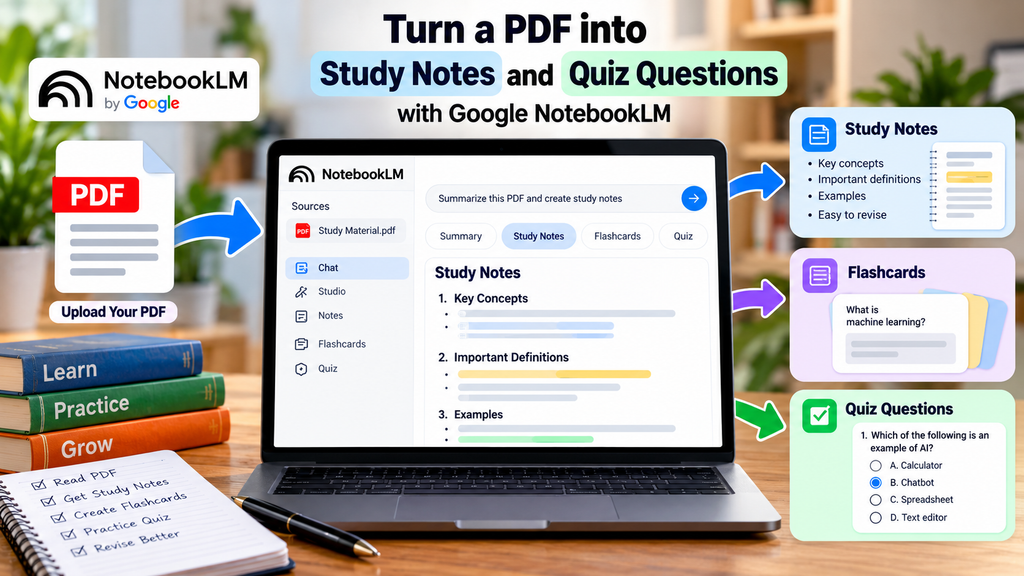
A useful structure for study notes
Depending on your subject, you can ask for notes with the following sections:
- Topic overview
- Key definitions
- Important concepts
- Step-by-step processes
- Examples and applications
- Differences between related terms
- Important facts and figures
- Questions to review
For subjects such as history, you might need dates, events, causes, and consequences. For science, you may need definitions, diagrams to review, processes, and formulas. For business studies, you may need concepts, examples, advantages, limitations, and comparisons.
Adjust the format to your syllabus instead of using the same structure for every subject.
Step 5: Create Short Revision Notes
Detailed notes are useful for learning, but shorter notes can be more convenient during the final revision period.
Once you have reviewed the detailed notes, ask NotebookLM to condense them.
Prompt:
“Turn these study notes into a concise revision sheet. Include only the most important concepts, definitions, formulas, dates, and facts supported by the source. Use short bullet points and clear headings. Keep the notes easy to review in five to ten minutes without changing the meaning of the original information.”
The resulting revision sheet can help you identify the main points quickly.
However, a short revision sheet should not replace detailed study when you are learning a subject for the first time. Use the detailed notes to understand the material and the short version to refresh your memory.
Step 6: Generate Quiz Questions from the PDF
Testing yourself is an important part of learning. Instead of reading the notes repeatedly, try answering questions without looking at the answers first.
NotebookLM offers quiz-generation capabilities based on your sources. Depending on the current interface, you may find a Quiz option in the Studio area or another study-materials section.
If you see the Quiz option, open it and customize the quiz where those controls are available.
You can also ask NotebookLM in the chat to draft practice questions.
Prompt:
“Create 15 practice questions based on this PDF for a student preparing for an examination. Include multiple-choice questions, short-answer questions, and conceptual questions. Cover the major topics rather than focusing only on the first few pages. Provide an answer key with a brief explanation for each answer. Base the questions and answers on the source.”
If you are using a built-in quiz generator, some settings may differ from the chat prompt. Use the available controls to select the topic, difficulty, or number of questions when supported.
How to use the questions effectively
Try this simple process:
- Answer each question without opening your notes.
- Mark the questions you cannot answer confidently.
- Check your answers against the answer key and source material.
- Review the relevant PDF sections for mistakes.
- Repeat the difficult questions later.
Do not judge your understanding only by the number of correct answers. Pay attention to which concepts you misunderstood and why.
Example of a practice question
Suppose your PDF explains photosynthesis. A practice question could be:
Question: What is the primary role of chlorophyll in photosynthesis?
A. To absorb light energy
B. To transport water through roots
C. To store genetic information
D. To release minerals into the soil
The correct answer is A. Chlorophyll absorbs light energy used in photosynthesis.
This is only an illustrative example. Questions for your actual study session should be based on the material in your uploaded PDF.
Step 7: Create Flashcards for Faster Revision
Flashcards are useful when you need to memorize key terms, definitions, dates, formulas, or concepts.
In NotebookLM, look for the Flashcards option among the available study tools. If you cannot find it, try asking the chat to prepare a set of question-and-answer pairs from your source.
Prompt:
“Create 20 flashcards based on the important concepts in this PDF. Each flashcard should have one clear question on the front and a short, accurate answer on the back. Focus on key definitions, concepts, important facts, and relationships. Avoid duplicate questions and base the answers on the source.”
A useful flashcard should test one main idea at a time.
For example:
Front: What is photosynthesis?
Back: Photosynthesis is the process by which plants and certain other organisms use light energy to produce chemical energy from carbon dioxide and water.
The exact answer in your own study set should match the level of detail required by your source and syllabus.
How to study with flashcards
- Try to answer each card before revealing its answer.
- Separate cards you know well from those you find difficult.
- Review difficult cards more frequently.
- Explain the answer in your own words where possible.
- Check the original PDF if an answer seems incomplete or unclear.
If your version of NotebookLM supports interactive flashcards and progress tracking, use those features to revisit cards you missed. Otherwise, you can copy the generated question-and-answer pairs into a separate study document.
Step 8: Ask Questions About Difficult Topics
Sometimes the notes and flashcards reveal that you do not fully understand a concept.
Return to the notebook chat and ask a specific question about the topic.
For example:
“Explain the difference between these two concepts using simple English. Provide an example from the PDF and cite the relevant source passages.”
Or try:
“Explain this process step by step. Identify the key stages, explain how they relate to one another, and point me to the relevant sections of the source.”
Specific questions usually make it easier to get a useful response than asking, “Explain everything in this chapter.”
Use citations to verify answers
NotebookLM can provide citations that point back to the source material. When an answer includes a citation, open it and inspect the relevant passage.
This is especially important when studying:
- Scientific facts
- Historical dates
- Mathematical formulas
- Legal or policy information
- Technical definitions
- Information that may be tested exactly as written
If a response does not provide enough evidence, ask a more specific follow-up question or check the original PDF yourself.
Step 9: Make a Topic-Wise Revision Plan
After generating notes, quizzes, and flashcards, organize your revision around the topics you need to learn.
For example, suppose you have a 30-page chapter with five major topics. You could divide your study session into separate blocks:
| Study activity |
|---|
| Read the PDF and summary |
|---|
| Review detailed notes |
|---|
| Practice quiz questions |
|---|
| Review flashcards |
|---|
| Revisit difficult sections |
|---|
| Purpose |
|---|
| Understand the overall topic |
|---|
| Learn important concepts |
|---|
| Identify knowledge gaps |
|---|
| Strengthen recall |
|---|
| Correct mistakes |
|---|
You do not have to follow a rigid timetable. The important thing is to combine understanding with active practice.
You can also ask NotebookLM to help you organize the topics.
Prompt:
“Based on this PDF, create a revision checklist of the major topics I should understand. For each topic, list the key concepts to learn and one question I should be able to answer before moving on. Do not assign a topic an examination weight unless the source provides that information.”
This helps you build a study checklist without inventing exam predictions.
Step 10: Check the Accuracy of Your Study Materials
AI can make mistakes, omit context, or generate questions that are not well supported by a source. A polished-looking answer is not automatically a correct one.
Before relying on your study materials, follow these checks.
Verify important facts. Compare names, dates, figures, formulas, and definitions with the original PDF.
Check the answer key. Try solving the questions yourself. Inspect the source when an answer is uncertain.
Look for missing topics. Make sure your notes cover the important sections required by your syllabus.
Review technical explanations. A simplified explanation should make a concept easier to understand without changing its meaning.
Avoid unsupported predictions. A quiz generated from a textbook does not guarantee that those exact questions will appear in your examination.
For high-stakes tests, use official study materials and guidance from your teacher or examining body as the final reference.
Best NotebookLM Prompts for PDF Study
You can save the following prompts and reuse them with different study documents.
Prompt 1: Simple PDF Summary
“Summarize this PDF in simple English. Explain the main topic, key ideas, important definitions, and major conclusions using clear headings and bullet points. Stay faithful to the source.”
Prompt 2: Detailed Study Notes
“Create organized study notes from this PDF. Include the important concepts, definitions, examples, processes, comparisons, and facts from the source. Use headings, subheadings, and concise bullet points.”
Prompt 3: Exam Revision Sheet
“Create a concise revision sheet from this PDF. Include the most important concepts and facts supported by the source. Make the notes easy to review quickly without removing essential context.”
Prompt 4: Practice Quiz
“Create 15 practice questions covering the major topics in this PDF. Include a mix of question types where appropriate, and provide an answer key with explanations grounded in the source.”
Prompt 5: Flashcards
“Create 20 flashcards from this PDF. Each card should test one important concept, definition, date, formula, or fact. Provide a clear question and a concise answer based on the source.”
Prompt 6: Explain a Difficult Concept
“Explain this topic in simple English, step by step. Define any technical terms and use examples supported by the PDF. Include citations or references to the relevant source passages when available.”
Prompt 7: Find Knowledge Gaps
“Create a checklist of the major topics in this PDF. For each topic, write one question I should be able to answer to demonstrate understanding. Do not invent exam weightings or claim that a topic will appear on an examination.”
Prompt 8: Check Quiz Answers
“Review these practice questions and answers against the uploaded source. Identify any incorrect, ambiguous, duplicated, or unsupported items. Suggest corrections and point to the relevant source passages where possible.”
Common Mistakes to Avoid
1. Accepting the First Summary Without Checking It
A summary may leave out an important detail. Compare it with the original document, especially when studying a technical or detailed subject.
2. Creating Too Many Notes
Longer notes are not always better. Ask for a clear structure and remove repeated explanations after checking that the important information remains.
3. Memorizing Answers Without Understanding Them
Use quizzes to discover what you do not understand. When you answer incorrectly, review the concept and explain it in your own words.
4. Asking Vague Questions
A prompt such as “Make good notes” gives little direction. Specify the audience, level of detail, format, and purpose.
5. Ignoring the Original Source
NotebookLM is most useful when you treat the PDF as the reference material. Use source citations to verify important answers instead of relying entirely on generated text.
6. Uploading Sensitive Documents Without Reviewing Privacy
Before uploading personal records, confidential business files, or restricted educational material, review the service’s current privacy information and your organization’s rules.
Is NotebookLM Free for Making Study Notes and Quizzes?
NotebookLM has offered access to its core features without a paid subscription, but usage limits and feature availability can change. Some accounts and eligible plans may have higher limits or additional capabilities.
Before planning a large study session, check the current information on the official NotebookLM website and its Help Center.
You do not need to buy a subscription just to try the basic workflow. Start with one PDF and see whether the available features meet your needs.
Frequently Asked Questions
Can NotebookLM summarize a PDF?
Yes. You can add a supported PDF as a source and ask NotebookLM to summarize its main ideas, explain concepts, or answer questions about its contents.
Can NotebookLM create study notes from a PDF?
Yes. You can ask it to organize the source into topic-wise notes, key definitions, bullet points, examples, and revision checklists. Review the results against the original document.
Can NotebookLM generate quiz questions?
Yes. NotebookLM includes quiz-generation capabilities. You can use available study tools or request practice questions through the chat. The interface and customization options may vary.
Can NotebookLM make flashcards from a PDF?
Yes. Its flashcard feature can generate question-and-answer cards from source materials, helping you practice recall and review important concepts.
Is NotebookLM suitable for exam preparation?
It can be useful for summarizing study materials, organizing notes, and practicing questions. However, it should complement—not replace—your official syllabus, textbook, and other required study resources.
What should I do if my PDF is scanned?
If the PDF contains scanned page images rather than searchable text, processing may be less reliable. Try to obtain a searchable PDF or another supported version, and verify that the uploaded content has been interpreted correctly.
Can I use NotebookLM without paying?
Core access has been available without a paid subscription, subject to account eligibility and usage limits. Check the official service for the current limits and feature availability.
Are NotebookLM’s answers always correct?
No AI tool should be assumed to be perfectly accurate. Verify important answers, particularly dates, formulas, technical details, and exam-critical information, using the source document.
Conclusion
NotebookLM can make PDF study sessions more organized by helping you turn long documents into summaries, structured notes, practice quizzes, and flashcards.
The best workflow is simple: upload a readable PDF, generate an initial summary, create detailed notes, prepare practice questions, review difficult concepts, and verify important answers against the original source.
Start with one chapter rather than trying to process all your study materials at once. Once you find a format that works for you, reuse the prompts to build a consistent revision process.
Used thoughtfully, NotebookLM can help you spend less time organizing information and more time understanding, remembering, and applying what you learn.