How to Create Images with Microsoft Copilot
Artificial intelligence is making image creation easier for everyone. You no longer need advanced graphic design skills to turn an idea into a visual. With an AI image generator, you can describe what you want in simple words and let artificial intelligence create an image for you.
One tool that can help with this process is Microsoft Copilot. It can generate images from text descriptions in supported experiences. You can describe a subject, choose a visual style, and refine the result with additional instructions.
But how do you use Microsoft Copilot to create images? What should you write in a prompt? Can you edit an existing picture? And can you use the generated images for blogs, social media, or business projects?
In this beginner-friendly guide, we will explain everything step by step, with practical examples and prompts you can try.
What Is Microsoft Copilot Image Generator?
Microsoft Copilot includes AI-powered image-generation capabilities in supported experiences. These features allow users to create images by describing what they want in natural language.
For example, you can enter a prompt such as:
“Create a realistic image of a modern home office with a laptop, green plants, a wooden desk, and natural sunlight.”
Copilot processes your description and generates an image based on the instructions and available features.
You can use image generation for ideas such as:
- Blog illustrations.
- Educational graphics.
- Social media visuals.
- Creative concepts.
- Presentation images.
- Marketing ideas.
- Personal artwork.
The exact image-generation features, usage limits, and interface may vary depending on your Microsoft account, subscription, region, and service availability.
What Do You Need Before Creating Images?
Before using Microsoft Copilot for image creation, prepare a few basic things.
- An internet connection: Copilot image generation works through an online service.
- A supported browser or app: You can use a supported web experience or the Copilot app.
- A Microsoft account: Signing in may be required for certain features and account-based experiences.
- A clear image idea: Think about the subject, background, style, and purpose of your image.
- Access to image generation: Some image-creation experiences or advanced options may require an eligible account or subscription.
You do not need professional graphic design knowledge to get started.
How to Use Microsoft Copilot to Create Images Step by Step
Here is a simple process for beginners.
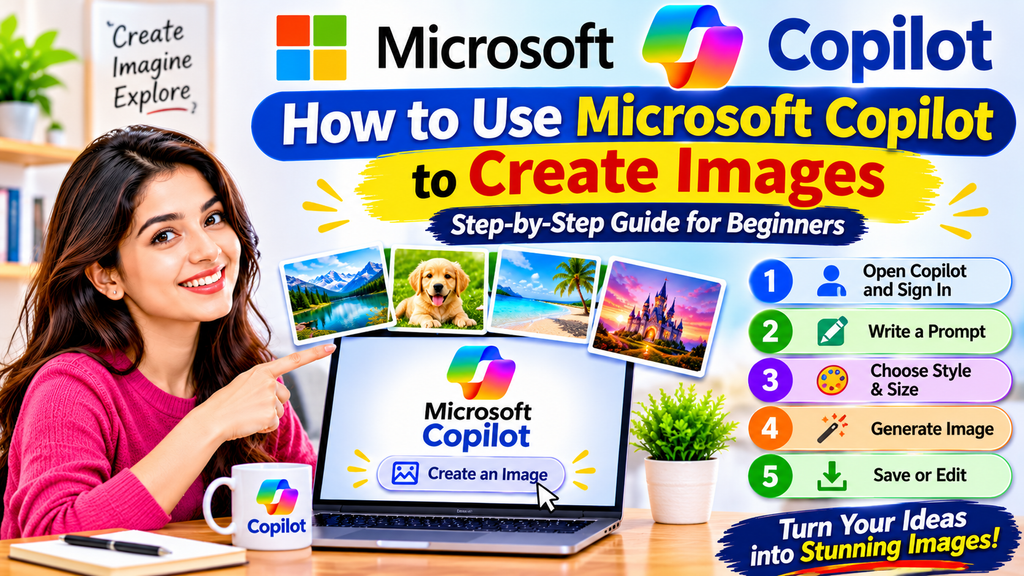
Step 1: Open Microsoft Copilot
Open your web browser and visit: https://copilot.cloud.microsoft/
You can also use the official Microsoft Copilot app on supported devices.
If prompted, sign in with your Microsoft account.
Step 2: Find the Image Creation Feature
Depending on the version of Copilot available to your account, you may see image creation directly in chat or through a separate Create experience.
In the Copilot app, the Create section may be available through the Apps and more menu.
If you see a Create option:
- Open the Create section.
- Select Create an image.
- Look for the image-description or prompt box.
If your interface does not show these options, try the supported image-generation experience available in your account. Feature availability can vary.
Step 3: Write Your Image Prompt
A prompt is a text instruction that tells Copilot what kind of image you want.
For example:
“Create a beautiful landscape image of mountains, a clear lake, green trees, and a colorful sunrise. Use a realistic photography style with natural lighting.”
A clear prompt should describe the subject and the visual details you want.
Instead of writing only “mountain image”, explain what the mountain should look like, what should appear in the background, and which style you prefer.
Step 4: Choose an Image Style
If your Copilot Create interface provides style options, choose the style that matches your idea.
Examples include:
- Photorealistic: Images that look like real photographs.
- Illustration: Clean artwork for educational or explanatory content.
- Anime: Anime-inspired visual style.
- Surrealism: Imaginative and unusual scenes.
- Digital art: Modern digital illustrations.
Not every style option is available in every Copilot experience.
Step 5: Select the Image Shape or Size
Some versions of Copilot Create allow you to choose an image shape.
Common options may include:
- Square: Useful for social media posts and profile graphics.
- Portrait: Useful for posters and vertical designs.
- Wide: Useful for website banners, blog images, and presentations.
Microsoft’s current Create documentation lists Square, Portrait, and Wide options in supported experiences. Available sizes may vary.
For a website featured image, a wide landscape image is usually a practical choice.
Step 6: Generate Your Image
After writing your prompt and selecting available settings, submit your request.
Copilot will process the description and generate an image.
Wait for the result. If the first image does not match your idea, do not worry. You can improve your prompt and try again.
Step 7: Save or Copy the Image
When you are happy with the result, use the available Save, Download, or Copy option.
Save the image to a folder on your device so you can find it later.
Before publishing, inspect the image for unwanted details, incorrect text, visual errors, and anything that does not match your intended use.
How to Write Better Prompts for AI Image Generation
The quality of your prompt can make a big difference to the final image.
A short prompt may produce a general result. A detailed prompt gives the AI more information about the subject, environment, lighting, composition, and visual style.
Try this simple formula:
Subject + Background + Style + Lighting + Composition + Purpose
For example:
“Create an educational illustration of a student using a laptop in a modern classroom. Show books, a notebook, and a desk in the background. Use a clean digital illustration style, soft natural lighting, and a wide horizontal composition. Make it suitable for a beginner’s educational blog.”
This gives Copilot more specific instructions.
10 Useful Microsoft Copilot Image Prompts
You can copy and adapt these prompts for your own projects.
1. Realistic Nature Image
“Create a photorealistic landscape of a peaceful green valley with mountains, a flowing river, and a beautiful sunrise. Use natural colors and soft morning light.”
2. Modern Office Image
“Create a realistic image of a modern home office with a laptop, wooden desk, indoor plants, and sunlight coming through a large window. Use a clean and professional composition.”
3. Educational Illustration
“Create a simple educational illustration showing how artificial intelligence helps people learn, write, research, and organize their daily work. Use clear visual elements and a clean design.”
4. Technology Background
“Create a futuristic technology background featuring digital networks, glowing data connections, and abstract AI-inspired elements. Use a professional blue and purple color palette.”
5. Small Business Image
“Create a realistic illustration of a small business owner working on a laptop in a bright and organized office. Include simple business-related objects in the background.”
6. Social Media Visual
“Create a square social media graphic about productivity tips. Use a clean modern design, attractive typography, and simple visual icons. Keep the layout easy to read.”
7. Blog Featured Image
“Create a wide educational blog illustration about artificial intelligence tools. Show a person using a laptop with subtle digital elements in the background. Use a professional, friendly, and uncluttered style.”
8. Food Photography
“Create a high-quality food photograph of a fresh vegetable salad in a ceramic bowl, with natural window lighting and a clean kitchen background.”
9. Learning and Education
“Create a colorful educational illustration of a student learning computer skills with a laptop, books, and digital learning symbols. Use a friendly and beginner-focused style.”
10. Creative Fantasy Art
“Create an imaginative fantasy landscape with floating islands, waterfalls, glowing plants, and a beautiful sunset. Use detailed digital painting and cinematic lighting.”
You can change the subject, colors, background, and style to suit your project.
How to Edit an Existing Image With Microsoft Copilot
Microsoft Copilot can also help transform an uploaded image in supported experiences.
For example, you may want to change the background, remove an unwanted object, or create a different visual style.
Follow these general steps:
- Open Microsoft Copilot.
- Select the plus (+) or Open option near the prompt box.
- Choose Add images or files.
- Select an image from your device.
- Enter a clear instruction describing the change you want.
- Submit your request.
- Review the edited result and ask for further changes if needed.
For example, you can try:
“Change the background of this photograph to a bright modern office while keeping the main subject natural and realistic.”
Other editing instructions include:
- “Remove the unwanted object in the background.”
- “Make the lighting brighter and more natural.”
- “Change the background to a peaceful garden.”
- “Convert this image into a clean digital illustration.”
Only upload images that you own or have permission to use. Avoid uploading private photographs or images containing confidential information.
How to Create Images for a Website or Blog
Bloggers and website owners can use AI-generated images to make articles more visually interesting.
Here are some practical ways to use Copilot for blog images.
1. Create a Featured Image
A featured image is the main visual associated with a blog post.
For example, if your article is about AI tools, you could ask Copilot to create a wide educational illustration showing a person using AI tools on a laptop.
Keep the design relevant to the article topic.
2. Create Images for Article Sections
You can also create supporting images for different sections of an article.
For example, an article about AI productivity could include illustrations about writing, research, planning, and automation.
Supporting images should explain or reinforce the information rather than simply fill empty space.
3. Create Educational Infographics
An infographic can present information visually.
You can ask Copilot to create a simple infographic showing a process, comparison, or list of steps.
However, AI-generated text inside images may contain spelling mistakes or inaccurate details. Always inspect it and correct errors before publishing. For important text-heavy infographics, you may get better results by creating the visual background with AI and adding the final text using a design editor.
4. Create Social Media Images
You can create square or portrait visuals for social media posts.
Use a clear topic, a simple layout, and readable text. Avoid overcrowding the design with too many elements.
Tips for Getting Better Results
Here are some practical tips to improve your AI-generated images.
- Be specific: Describe the main subject and what should appear around it.
- Choose a clear style: Tell Copilot whether you want a photograph, illustration, or digital artwork.
- Mention the composition: Specify whether you want a close-up, wide view, or centered subject.
- Describe the lighting: Natural light, soft lighting, or dramatic lighting can change the appearance.
- Avoid too many instructions: Keep your prompt detailed but organized.
- Refine the result: Ask Copilot to make one or two specific changes at a time.
- Check the final image: Look for errors, strange details, and unwanted objects.
Is Microsoft Copilot Image Generation Free?
Microsoft offers different Copilot experiences, and image-generation availability depends on the product and account.
Some Copilot Chat experiences support image generation with standard access and usage limits. The Microsoft 365 Copilot Create experience may require an eligible subscription, and some subscriptions have feature limits.
Before relying on a particular feature, check the current Microsoft documentation and your account’s available options.
Official information: https://support.microsoft.com/en-us/microsoft-365-copilot/create-ai-generated-images-with-the-microsoft-365-copilot-app
Do not assume that every image-generation feature is unlimited or available to every account.
Can You Use Microsoft Copilot Images for Commercial Purposes?
This is an important question for bloggers, businesses, and content creators.
Whether you can use a generated image commercially depends on the applicable Microsoft terms, the content of the image, and any third-party rights involved.
Before using an image commercially:
- Review the applicable Microsoft terms and conditions.
- Avoid generating copyrighted characters, protected logos, or branded designs without permission.
- Do not use another person’s photograph without the necessary rights.
- Avoid presenting AI-generated images as genuine photographs of real events.
- Check the image carefully for accidental trademarks or other protected material.
An AI-generated image is not automatically free from copyright, trademark, privacy, or other legal concerns.
Does Using AI-Generated Images Affect Website Monetization?
AI-generated images do not automatically prevent a website from earning advertising revenue.
However, the overall quality and usefulness of the website matter. Images should support original, helpful content rather than replace meaningful information.
For a better publishing approach:
- Use relevant images that explain the article.
- Avoid copying other creators’ images.
- Do not publish misleading visuals.
- Add useful alt text for accessibility.
- Optimize image size for website performance.
- Provide original explanations and useful information around the images.
- Review the applicable advertising network policies.
No image or image-generation tool can guarantee AdSense approval or monetization.
Microsoft Copilot Image Generator: Common Problems and Solutions
1. Image Generation Option Is Missing
The interface may differ depending on your account, product, region, or subscription.
Try opening the official Copilot experience, signing in, and checking whether image generation or Create is available.
2. Copilot Does Not Understand Your Prompt
Your prompt may be too short or unclear.
Add details about the subject, background, style, lighting, and image shape.
3. The Generated Image Contains Incorrect Text
AI image generators may struggle with exact text and spelling.
Try generating the image without text, then add the correct wording using a separate image editor.
4. Image Generation Is Taking Too Long
Generation speed can vary depending on service availability and demand.
Wait for the current request to finish. If the service reports an error, try again later.
5. The Image Does Not Look Professional
Try a more specific prompt. Mention the intended use, visual style, composition, and background.
You can also ask Copilot to make one specific improvement at a time.
Microsoft Copilot vs Other AI Image Generators
Microsoft Copilot is one option for AI image creation, but it is not the only one.
Different tools offer different workflows, styles, editing features, and usage limits.
| Tool |
|---|
| Main use |
|---|
| Microsoft Copilot |
|---|
| AI image creation through supported Copilot experiences |
|---|
| ChatGPT |
|---|
| Image generation and image editing in supported experiences |
|---|
| Adobe Firefly |
|---|
| AI-powered creative image workflows |
|---|
| Canva |
|---|
| Design workflows with AI-powered features |
|---|
| Microsoft Paint Image Creator |
|---|
| AI image generation inside supported Paint experiences |
|---|
The best tool depends on your creative needs, available features, budget, and terms of use.
Frequently Asked Questions
1. Can Microsoft Copilot create images from text?
Yes. Supported Copilot experiences can generate images from text descriptions. Enter a prompt explaining what you want to create.
2. Is Microsoft Copilot image generation free?
Some Copilot Chat image-generation access may be available with standard limits. Other Create features may require an eligible subscription. Availability can change.
3. Do I need design skills to create images with Copilot?
No. You can describe your idea in everyday language. Clear prompts can help you get more useful results.
4. Can I create realistic images with Microsoft Copilot?
Yes. You can request photorealistic images in supported experiences, although results may not always look exactly like real photographs.
5. Can Microsoft Copilot edit uploaded images?
Yes. Supported experiences allow you to upload an image and request changes, such as modifying the background or removing an unwanted object.
6. Can I create blog images with Microsoft Copilot?
Yes. You can create featured images, supporting illustrations, and other visuals for blog articles. Review the images before publishing.
7. Can I use Copilot-generated images on social media?
You can use generated images subject to the applicable Microsoft terms and any third-party rights. Check those terms before commercial use.
8. What makes a good AI image prompt?
A good prompt clearly describes the subject, background, style, lighting, composition, and intended use.
9. Why does Copilot sometimes generate an incorrect image?
AI image generation is not perfect. It may misunderstand instructions or produce unexpected details. Refine the prompt and try again.
10. Is Microsoft Copilot better than other AI image generators?
There is no single best tool for everyone. Compare the available styles, editing options, image quality, usage limits, and pricing before choosing.
Final Thoughts
Microsoft Copilot makes AI image creation accessible to people who do not have professional design experience.
You can describe an idea, choose available visual settings, generate an image, and refine the result with additional instructions.
For beginners, the best way to learn is to experiment with simple prompts and gradually add more details. Try creating a landscape, a blog illustration, or an educational graphic to understand how different instructions affect the final result.
Always review the generated image before publishing it, check the applicable usage terms, and make sure it adds genuine value to your content.
With clear prompts and careful editing, Microsoft Copilot can become a useful part of your creative workflow.