How to Create a PowerPoint with AI (Step-by-Step)
Creating a professional PowerPoint presentation can take time, especially when you need to research a topic, organize information, write slide content, and choose an attractive design.
Whether you are a student preparing a class presentation, an office employee presenting a project, or a business owner explaining an idea, creating slides from scratch can feel challenging.
Artificial intelligence (AI) tools can make the process easier.
With AI assistants such as ChatGPT, Google Gemini, and Microsoft Copilot, you can brainstorm presentation ideas, create slide outlines, write content, suggest visual designs, and prepare speaker notes.
Some dedicated AI presentation tools can also generate editable slides or presentation drafts, depending on the service and available features.
However, AI-generated presentations still require human review. You should check the facts, improve the design, and make sure the final slides communicate your message clearly.
In this beginner-friendly guide, you will learn how to use AI to create a PowerPoint presentation step by step, explore useful AI prompts, and discover practical ways to improve your slides.
What Is an AI PowerPoint Presentation Maker?
An AI PowerPoint presentation maker is a tool that uses artificial intelligence to assist with creating presentation content, layouts, or complete slide decks.
Traditional presentation creation usually involves researching a topic, writing content, choosing a template, and arranging text and images manually.
AI can help with some of these tasks.
For example, you could enter this prompt:
“Create a 10-slide presentation outline about the benefits of artificial intelligence for small businesses. Use simple English, include practical examples, and suggest a visual for each slide.”
An AI assistant can generate an outline containing slide titles, bullet points, and suggested visuals.
You can then transfer that content into Microsoft PowerPoint or another presentation editor.
Some AI presentation platforms offer more direct slide-generation features. The availability of those features depends on the tool, subscription, and supported export formats.
The important distinction is that generating presentation content is not always the same as generating a finished PowerPoint file.
A general AI chatbot may help you write the content, while a presentation-focused tool may also help with slide design and layout.
Benefits of Using AI to Create PowerPoint Presentations
AI can help simplify different parts of the presentation creation process.
1. Save Time on Presentation Planning
Planning a presentation requires deciding what information to include and how to organize it.
AI can suggest a logical structure based on your topic, audience, and presentation length.
Instead of beginning with a blank slide, you can start with a draft outline and improve it.
2. Generate Slide Content
AI can help write slide titles, bullet points, short explanations, and summaries.
For example, if your presentation is about digital marketing, AI could suggest slides covering social media marketing, search engine optimization, email marketing, and performance measurement.
You should still verify the information and remove anything that does not support your presentation’s goal.
3. Improve Presentation Structure
A good presentation should guide the audience from an introduction to the main information and then to a clear conclusion.
AI can suggest the order of slides, identify repeated points, and recommend smoother transitions.
4. Suggest Visual Ideas
Visuals can help explain information more clearly.
AI can suggest charts, diagrams, timelines, comparison tables, and illustrations that match your content.
However, you must ensure that charts use accurate data and that images are appropriate for your intended use.
5. Prepare Speaker Notes
Speaker notes help presenters explain slide content without putting too much text on the screen.
AI can draft notes that expand on the main points and suggest examples or transitions.
These notes should be reviewed and adjusted to match your own knowledge and speaking style.
6. Help Beginners Create Presentations
Students and first-time presenters may struggle with slide organization and professional wording.
AI can provide a starting structure and explain how to improve each slide.
This makes it a useful learning assistant, although it does not replace understanding the subject.
Which AI Tools Can Help Create PowerPoint Presentations?
Several AI tools can assist with presentation creation. Some focus on writing, while others offer slide-generation and design features.
ChatGPT
ChatGPT can help you brainstorm presentation topics, create outlines, write slide content, prepare speaker notes, and improve explanations.
You can also ask it to recommend visuals or reorganize an existing presentation.
Depending on the features available in your account and workflow, you may still need to copy the content into PowerPoint and format the slides manually.
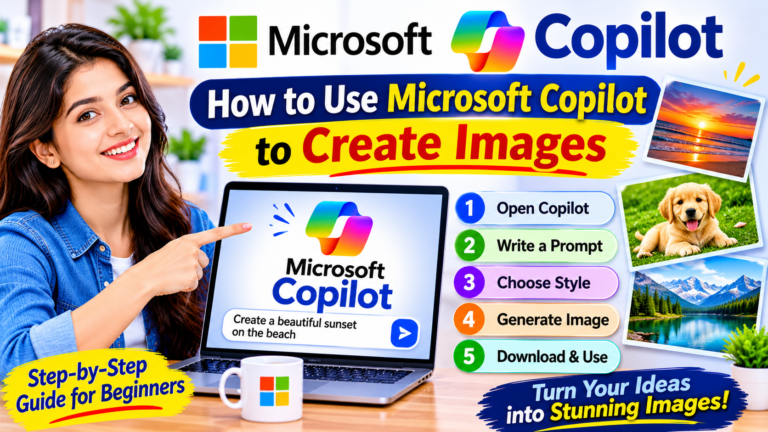
Microsoft Copilot
Microsoft Copilot can assist with writing, summarizing, and presentation-related tasks.
Certain Copilot features integrated with Microsoft PowerPoint can help create or refine presentation content.
Availability depends on your Microsoft account, subscription, application version, and organizational settings.
Check Microsoft’s current documentation before relying on a specific feature.
Google Gemini
Google Gemini can help generate presentation outlines, explain topics, summarize information, and suggest slide content.
Some Google Workspace integrations may support presentation workflows, depending on the account and available features.
If you need a PowerPoint file, check the supported export options and formatting after conversion.
Gamma AI
Gamma is a presentation-focused platform that can help generate and organize visual presentations from prompts or existing content.
It can be useful when you want a presentation-oriented workflow instead of manually building every slide.
Features, export formats, free-plan limits, and pricing can change, so review the current options before choosing a plan.
Other AI Presentation Tools
Additional AI presentation platforms may offer templates, automatic layouts, branding options, image suggestions, and slide exports.
Before selecting a tool, consider:
- Whether you need an editable PowerPoint file
- Available templates and design options
- Export formats
- Free-plan limitations
- Pricing and subscription terms
- Privacy and data-handling policies
The best tool depends on whether you primarily need writing assistance, automatic slide design, or both.
How to Create a PowerPoint Presentation with AI Step by Step
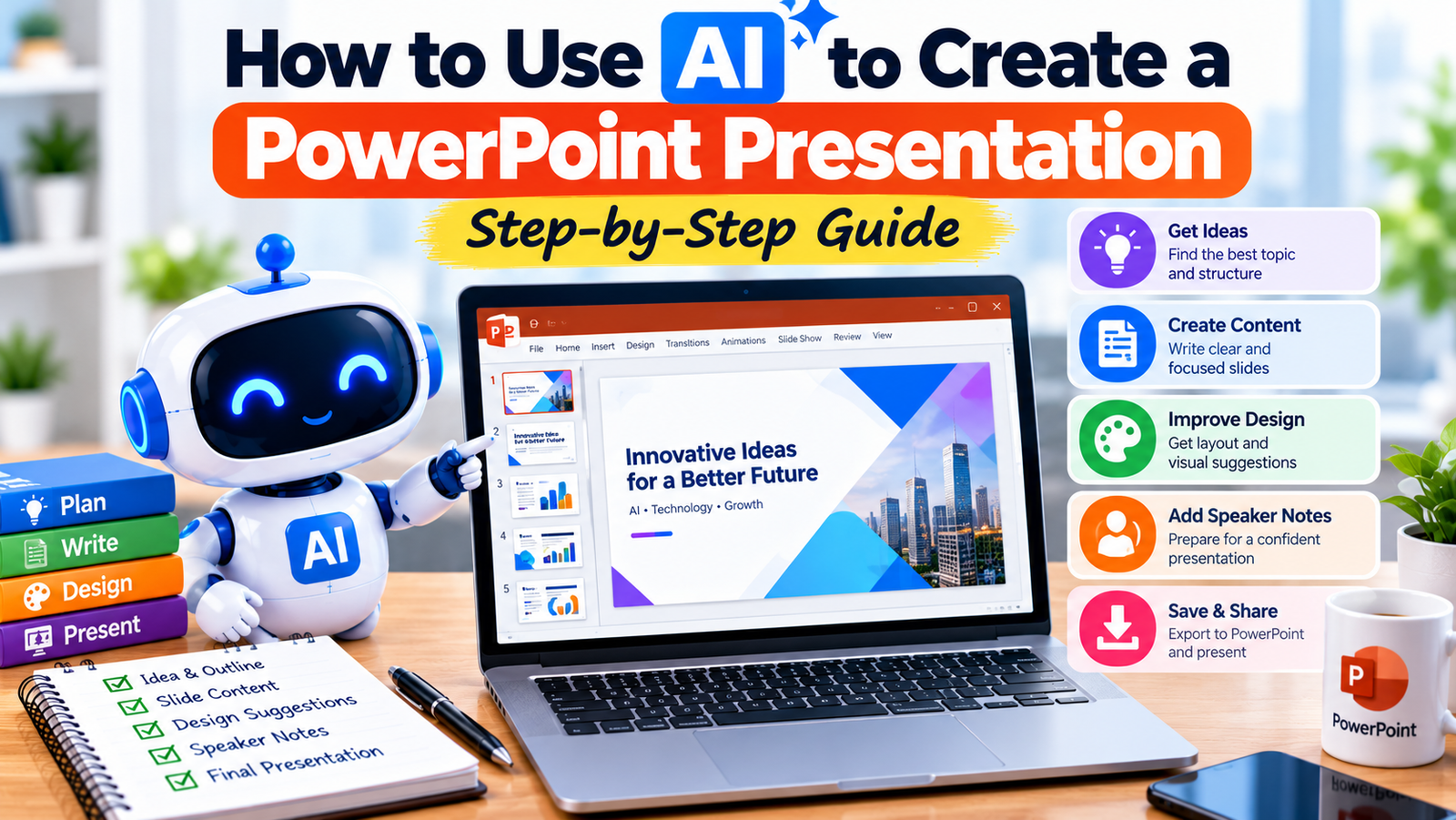
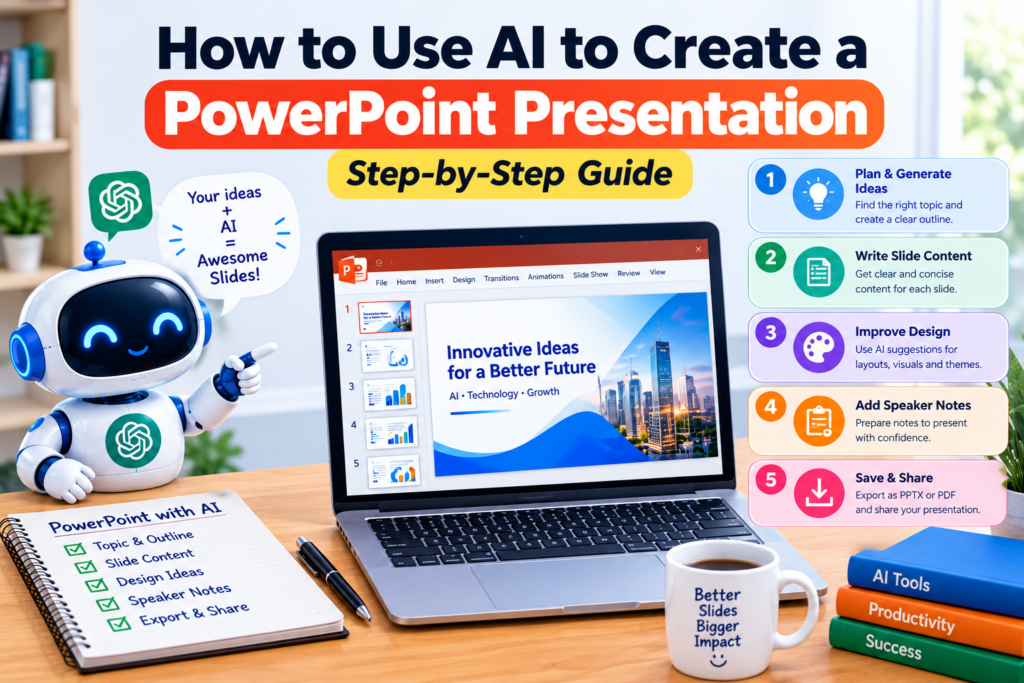
You can create a useful presentation using an AI assistant and Microsoft PowerPoint.
The following process is suitable for beginners.
Step 1: Choose Your Presentation Topic
Start by identifying the subject of your presentation.
For example:
“How Artificial Intelligence Helps Students Learn”
A specific topic is easier to organize than a broad subject such as “Technology.”
Next, define the purpose of your presentation.
Are you trying to educate, explain a project, compare options, or persuade an audience?
You can ask AI:
“Help me define the main objective of a presentation about how artificial intelligence helps students learn. Suggest five key questions the presentation should answer.”
Review the suggestions and choose the questions that match your purpose.
Step 2: Identify Your Target Audience
The same topic may require different explanations for different audiences.
For example, a presentation about artificial intelligence for school students should use simpler language than a presentation for experienced software developers.
Try this prompt:
“My presentation topic is [topic]. My audience is [students/business professionals/beginners]. Suggest the most important points to explain, the appropriate language level, and examples that would be useful for this audience.”
This helps you create content that your audience can understand.
Step 3: Decide the Number of Slides
Before generating content, decide how many slides you need.
A short presentation may require fewer slides than a detailed training session.
There is no universal rule for the ideal number of slides.
The appropriate length depends on the topic, available time, complexity, and amount of discussion.
For example, you might plan an eight-slide presentation:
- Title
- Introduction
- Main concept
- Key benefit
- Practical example
- Challenges
- Recommendations
- Conclusion
You can adjust this structure to fit your needs.
Step 4: Ask AI to Create a Presentation Outline
Now use ChatGPT, Gemini, or another AI assistant to create an outline.
Example AI Prompt:
“Create an eight-slide PowerPoint presentation outline about how artificial intelligence helps students learn. The audience is beginners. Include a title slide, introduction, main benefits, practical examples, limitations, and conclusion. Give each slide a clear title and three to four key points. Avoid unsupported statistics.”
AI may suggest a structure that you can refine.
Check whether the presentation follows a logical order and whether each slide contributes to the main objective.
Step 5: Generate Content for Each Slide
Once you approve the outline, ask AI to write concise slide content.
Use this prompt:
“Using the presentation outline below, write content for each slide. Keep the language simple and professional. Use short bullet points rather than long paragraphs. Include only information that is relevant to the slide. Do not invent facts or statistics.”
Paste your outline after the prompt.
Review the generated content carefully.
Avoid copying large paragraphs directly onto slides. Presentation slides should usually emphasize the main ideas rather than contain everything you plan to say.
Step 6: Create Your PowerPoint Slides
Open Microsoft PowerPoint and create a new presentation.
Choose a simple theme or template that suits your topic.
You can then transfer the AI-generated content into individual slides.
For example:
Slide 1: Title
How Artificial Intelligence Helps Students Learn
Subtitle: Practical Benefits, Examples, and Limitations
Slide 2: Introduction
- AI tools can assist with learning activities.
- Students can use AI for explanations and study planning.
- AI-generated answers should be checked for accuracy.
Slide 3: Practical Benefits
- Explaining difficult concepts
- Creating practice questions
- Summarizing study materials
- Organizing study schedules
Continue adding slides according to your approved outline.
If your chosen AI presentation tool supports direct slide generation, you can use that workflow instead. Always review the exported presentation.
Step 7: Ask AI for Slide Design Suggestions
After writing the content, consider how each slide should look.
Use this prompt:
“Review the following presentation outline and suggest a professional design for each slide. Recommend suitable layouts, charts, icons, diagrams, or illustrations. Keep the slides readable and avoid unnecessary decoration.”
AI might recommend a comparison chart for two approaches, a timeline for a process, or a simple diagram for a concept.
Use visuals only when they help explain the content.
Step 8: Generate Speaker Notes
Speaker notes help you expand on slide content during the presentation.
For example, a slide may contain this bullet point:
“AI can help summarize study materials.”
The speaker notes could explain:
“Students can use certain AI tools to summarize notes or documents into shorter explanations. However, they should compare important information with the original material because summaries may omit details or contain mistakes.”
You can generate notes with this prompt:
“Write speaker notes for each slide in my presentation. Use conversational English and explain the main points with practical examples. Keep the notes separate from the slide content. Do not add unsupported claims.”
Read the notes aloud and edit them to sound natural.
Step 9: Check Facts and Improve the Slides
AI-generated content is not always accurate.
Review the presentation for:
- Incorrect information
- Outdated product features
- Unsupported statistics
- Spelling and grammar mistakes
- Repeated content
- Inconsistent formatting
- Difficult-to-read text
- Images without appropriate usage rights
Verify important facts using reliable sources.
If you include charts, ensure the values come from genuine data rather than invented examples presented as real findings.
Step 10: Save, Export, and Practice
Once the presentation is ready, save it in the required format.
For Microsoft PowerPoint, an editable presentation typically uses the .pptx format.
You may also export a PDF when you need a document for viewing or sharing.
Before presenting:
- Open the saved file to confirm it works.
- Check whether fonts and layouts display correctly.
- Test animations and transitions if used.
- Review the presentation on the device you plan to use.
- Practice your explanation and timing.
AI can help prepare the content, but practicing is essential for delivering a clear presentation.
Best AI Prompts for PowerPoint Presentations
The following prompts can help you with different presentation tasks.
Replace the bracketed information with your own details.
Prompt 1: Generate a Complete Presentation Outline
“Create a professional PowerPoint presentation outline about [topic] for [audience]. The presentation should have [number] slides. Include an introduction, logically organized main points, practical examples, and a conclusion. Provide a title and key bullet points for every slide.”
Prompt 2: Write Slide Content
“Write concise, beginner-friendly content for the following presentation outline. Use short bullet points and clear headings. Avoid unnecessary details, unsupported statistics, and exaggerated claims. Keep each slide focused on one main idea.”
Prompt 3: Create Speaker Notes
“Write natural speaker notes for each slide in this presentation. Explain the key points in simple language and include practical examples where appropriate. Keep speaker notes separate from the text displayed on the slides.”
Prompt 4: Improve Presentation Design
“Suggest a clean, professional design for my presentation about [topic]. Recommend suitable colors, layouts, charts, diagrams, and visual elements. Prioritize readability and consistency.”
Prompt 5: Turn a Long Document into Slides
“Summarize the following document into a [number]-slide presentation. Identify the main ideas, organize them logically, and suggest clear slide titles. Preserve important context and flag information that may be lost through summarization. Do not invent details.”
Only share documents with an AI service when you are authorized to do so, and remove confidential information when possible.
Prompt 6: Simplify Difficult Slide Content
“Rewrite the following slide content for a beginner audience. Use simple English, short sentences, and clear examples. Preserve the original meaning and do not add unsupported claims.”
Prompt 7: Review a Presentation Before Delivery
“Review my presentation outline and slide content for clarity, accuracy, structure, repetition, and audience relevance. Identify weak slides and suggest specific improvements. Separate factual issues from design suggestions.”
Example: An AI-Generated PowerPoint Presentation Outline
Suppose you want to create a presentation titled:
How AI Can Improve Workplace Productivity
Here is a sample eight-slide structure.
Slide 1: Title Slide
How AI Can Improve Workplace Productivity
Subtitle: Practical Uses of Artificial Intelligence at Work
Include the presenter’s name and presentation date if appropriate.
Slide 2: Introduction to AI at Work
- AI tools can assist with certain workplace tasks.
- Common uses include drafting, summarizing, and organizing information.
- Human review remains important.
Slide 3: AI for Writing and Communication
- Drafting professional emails
- Improving document clarity
- Creating meeting agendas
- Preparing first drafts of reports
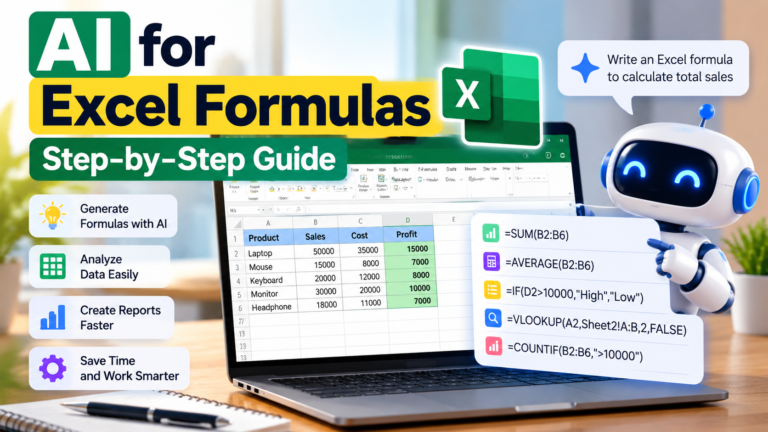
Slide 4: AI for Data and Spreadsheets
- Explaining spreadsheet formulas
- Suggesting data-cleaning steps
- Helping organize information
- Assisting with data analysis questions
Verify any formulas or calculations before using them for important decisions.
Slide 5: AI for Presentations
- Generating slide outlines
- Writing concise content
- Suggesting visual layouts
- Preparing speaker notes
Slide 6: AI for Research and Summarization
- Summarizing long documents
- Organizing research notes
- Identifying questions for further investigation
- Comparing information from supplied sources
Important claims should be checked against original sources.
Slide 7: Limitations and Responsible Use
- AI can produce inaccurate answers.
- Sensitive information requires protection.
- Generated content needs human review.
- AI should support rather than replace professional judgment.
Slide 8: Conclusion
- Start with a practical task.
- Use clear prompts.
- Review AI-generated results.
- Improve the workflow through experience.
This outline is a starting point. You can add real examples, demonstrations, charts, and verified information to make the final presentation more useful.
How to Improve AI-Generated PowerPoint Slides
Generating a first draft is only part of the process.
The following improvements can help make your presentation clearer and more professional.
Use One Main Idea Per Slide
Avoid placing too many unrelated points on one slide.
A slide with a clear message is easier to understand than one filled with several competing ideas.
Keep Text Short and Readable
Use concise headings and bullet points.
Move detailed explanations into speaker notes instead of filling the slide with paragraphs.
Choose font sizes that remain readable when projected on a screen.
Maintain Consistent Formatting
Use consistent colors, fonts, headings, spacing, and alignment.
A consistent design helps the audience focus on the content.
Use Relevant Visuals
Charts, diagrams, and images should support the message.
Avoid decorative visuals that distract from the main information.
If you use AI-generated illustrations, review them for misleading details, incorrect text, or unrealistic representations.
Check Data and Sources
Verify statistics, financial figures, research findings, and technical claims.
If you include data from another source, provide an appropriate citation.
Make Slides Accessible
Use sufficient contrast between text and backgrounds.
Avoid relying only on color to communicate information.
Where appropriate, include alternative text for meaningful images and use descriptive slide titles.
Practice Your Presentation
Read the speaker notes and rehearse the presentation.
Check whether the information fits within the available time and whether transitions between slides feel natural.
Common Mistakes to Avoid When Using AI for PowerPoint Presentations
1. Copying AI Content Without Reviewing It
AI-generated content may contain errors or irrelevant information.
Review every slide and verify important claims.
2. Adding Too Much Text
Slides filled with paragraphs can overwhelm the audience.
Use concise points and explain the details verbally.
3. Using Complicated Designs
Excessive animations, colors, and visual effects can distract viewers.
Choose a simple design that supports the topic.
4. Including Incorrect Charts
AI may suggest charts without having access to verified data.
Never present invented numbers as real research findings.
5. Ignoring the Target Audience
A technical presentation may confuse beginners, while an overly basic presentation may not help experienced professionals.
Adapt the content to the audience.
6. Uploading Confidential Information
Avoid sharing sensitive business documents, private customer information, or confidential research with AI services unless you have permission and understand the applicable privacy controls.
7. Assuming AI Can Replace Preparation
Even a well-designed presentation may be ineffective if the presenter does not understand the content.
Review the material, practice, and prepare for audience questions.
Can You Create a PowerPoint Presentation with AI for Free?
Yes, it is possible to use free AI features to help prepare presentation outlines, slide content, and speaker notes.
For example, you can use an AI assistant with available free access to draft content and then arrange that content in a presentation editor.
However, free plans may have usage limits or restricted features.
Some dedicated AI presentation tools charge for advanced templates, exports, branding options, or larger presentation projects.
Check current pricing and available features before choosing a service.
You do not necessarily need a paid AI subscription to create a useful presentation.
Frequently Asked Questions
Can ChatGPT create a PowerPoint presentation?
ChatGPT can help generate slide outlines, presentation content, speaker notes, and design suggestions. Whether it can produce a downloadable presentation file depends on the features and tools available in your environment.
Which AI tool is best for creating PowerPoint presentations?
ChatGPT, Microsoft Copilot, Google Gemini, and Gamma can assist with presentation workflows in different ways. The best choice depends on whether you need content generation, design assistance, or an editable slide file.
Can AI automatically design presentation slides?
Some AI presentation tools can generate layouts and visual designs from prompts or existing content. You should still review the slides for readability, accuracy, and formatting issues.
Is it free to create PowerPoint presentations with AI?
Some AI assistants and presentation tools offer free features or limited free plans. Advanced capabilities may require payment. Check the current pricing and restrictions before using a service.
Can AI create speaker notes for PowerPoint?
Yes. AI assistants can draft speaker notes based on slide titles and bullet points. Review the notes to ensure they are accurate and match your presentation style.
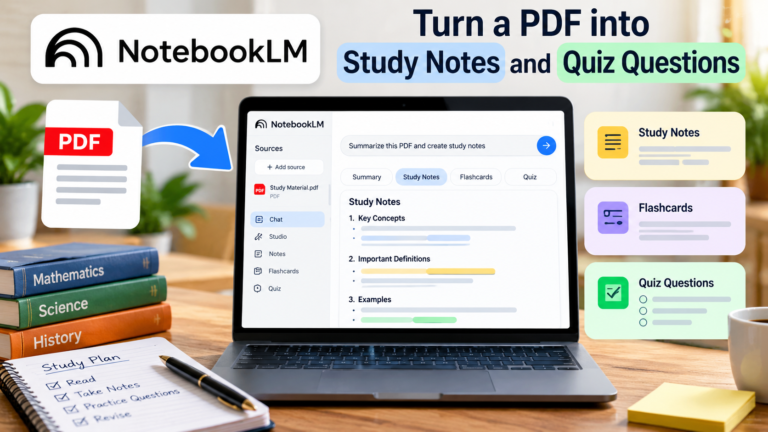
Can AI turn a PDF into a PowerPoint presentation?
AI tools can help summarize a PDF and organize its content into a slide outline. Some services also support document-to-presentation workflows. The exact capabilities and export options depend on the tool.
Are AI-generated presentations suitable for professional use?
They can be useful for professional work when the content is accurate, relevant, properly reviewed, and appropriately formatted. Sensitive information, copyright requirements, and organizational policies should also be considered.
Can AI guarantee a professional presentation?
No. AI can assist with writing and design, but presentation quality also depends on accurate information, appropriate visuals, clear communication, and preparation.
Conclusion
AI can simplify PowerPoint presentation creation by helping you brainstorm ideas, develop outlines, write slide content, suggest visuals, and prepare speaker notes.
To create an effective presentation, start with a clear topic, understand your audience, use specific AI prompts, and organize your information into a logical structure.
Then review the content carefully, verify important facts, improve the slide design, and practice before presenting.
Whether you are a student, professional, teacher, or business owner, AI can be a useful assistant for preparing presentations more efficiently.
The best results come from combining AI assistance with accurate information, thoughtful design, and your own understanding of the subject.