
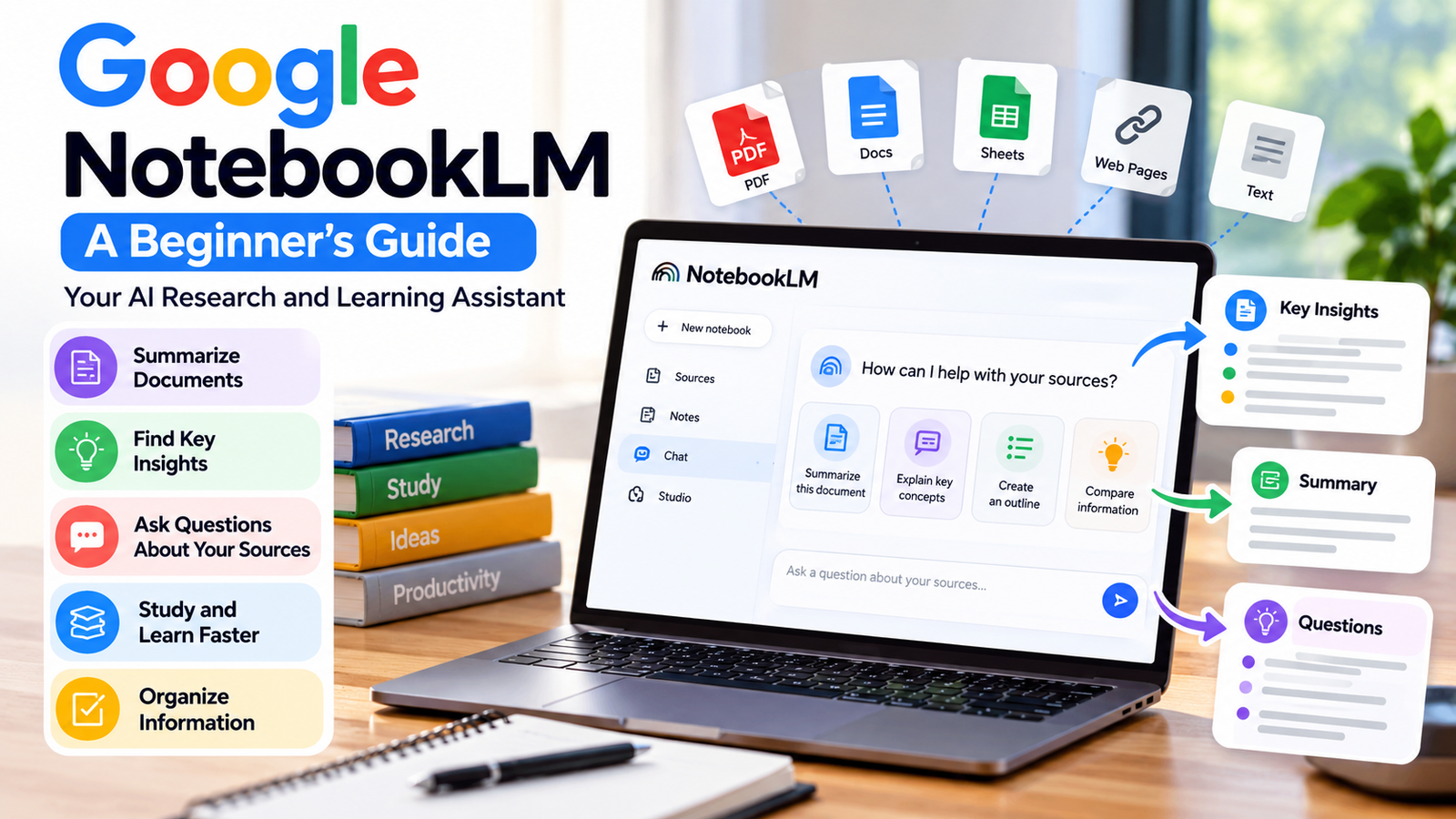
What Is Google NotebookLM? A Beginner’s Guide
Artificial intelligence is changing the way people learn, research, and organize information. Many AI tools can answer questions and generate content, but understanding a large collection of documents can still take time.
Google NotebookLM is an AI-powered research and learning assistant designed to help users work with their own sources. It can summarize supported documents, answer questions about the information provided, and help organize ideas.
For students, professionals, researchers, content creators, and beginners, NotebookLM can make working with information more convenient.
In this beginner’s guide, you will learn what Google NotebookLM is, how it works, how to get started, its main features, practical uses, limitations, and tips for using it responsibly.
1. What Is Google NotebookLM?
Google NotebookLM is an AI-powered tool from Google that helps users understand and explore information from sources they provide.
Depending on the features available to your account, you may be able to add supported documents, PDFs, website sources, text, and other materials to a notebook.
You can then ask questions about those sources, create summaries, identify important ideas, and organize information for a project or research task.
For example, imagine that you have a long PDF about artificial intelligence. Instead of reading the entire document immediately, you could ask NotebookLM to summarize its main points and identify the most important concepts.
NotebookLM is particularly useful when you want to work with a defined collection of information rather than ask only general questions.
2. How Does Google NotebookLM Work?
NotebookLM uses AI to analyze information from supported sources and help you interact with that information.
A typical workflow looks like this:
- Create a notebook for a topic or project.
- Add relevant source materials.
- Ask questions about the sources.
- Review the generated answers and summaries.
- Check the cited source passages when available.
- Use the findings to support your own work.
For example, if you add several documents about climate change, you might ask NotebookLM to compare their main arguments or summarize the evidence they present.
Its answers can help you understand the material, but you should still verify important facts and conclusions against the original sources.
3. How to Get Started With Google NotebookLM
Getting started is straightforward.
Step 1: Open NotebookLM
Visit the official website: https://notebooklm.google.com/
Sign in with your Google account if required. Availability, supported features, and account requirements may vary.
Step 2: Create a Notebook
Create a new notebook and give it a descriptive name.
For example, you could use “AI Tools Research,” “Study Notes,” or “Blog Article Research.”
A clear name makes it easier to organize different topics.
Step 3: Add Your Sources
Add supported source materials relevant to your topic. Depending on current availability, these may include PDFs, text documents, website links, and other supported formats.
Choose reliable sources and make sure you have permission to upload or use the material.
Step 4: Ask a Question
After adding sources, ask a specific question about their content.
For example:
“Summarize the main ideas from these sources in five bullet points. Explain any technical terms in simple English.”
Specific questions usually make it easier to obtain useful responses.
Step 5: Review the Results
Read the answer carefully. If citations or source references are provided, open them to check the supporting information.
If the answer is unclear, ask a follow-up question or request a simpler explanation.
4. Key Features of Google NotebookLM
NotebookLM offers several useful capabilities. The exact features and usage limits may change over time and may differ by account.
1. Source-Based Answers
NotebookLM can help answer questions using the sources in your notebook.
This is useful when you want to understand a particular document or collection of materials without manually searching every page.
Always check the original material when accuracy matters.
2. Summarizing Documents
Long documents can be difficult to review quickly. NotebookLM can help summarize supported sources and highlight key ideas.
For example, you could ask:
“Summarize this report in ten bullet points. Include its main findings, important dates, and key recommendations.”
Use the summary as a starting point, then consult the full report for important details.
3. Research Assistance
NotebookLM can help you compare information across sources, identify recurring themes, and organize notes.
For example, a student researching renewable energy could ask it to compare the advantages and disadvantages discussed in several documents.
4. Study and Learning Support
Students and independent learners can use NotebookLM to simplify difficult concepts, prepare revision notes, and generate questions for practice.
For example:
“Explain the main concepts in these notes in simple English. Then create ten revision questions with answers based only on the supplied material.”
Review the answers and use the original sources to correct misunderstandings.
5. Audio Overviews and Other Learning Formats
Depending on the available features, NotebookLM may offer audio-based overviews or other ways to explore notebook material.
These features can help users review information in a different format. Availability, languages, and usage limits may vary.
Treat generated audio and summaries as learning aids, not substitutes for checking the original sources.
6. Organizing Information
You can create separate notebooks for different subjects, projects, or research tasks.
For example, a content creator might maintain separate notebooks for AI news, article research, product comparisons, and tutorial planning.
This approach can make research easier to manage.

5. Practical Ways to Use Google NotebookLM
NotebookLM can support many everyday activities.
For Students
Students can use it to summarize study materials, clarify concepts, prepare revision notes, and create practice questions.
Example prompt:
“Explain the main ideas in these study notes for a beginner. Include examples and five questions to test my understanding.”
For Bloggers and Content Creators
Bloggers can use NotebookLM to organize research before writing an article.
For example, you could collect official documentation, product information, and reliable reference materials in a notebook.
Then ask:
“Organize the key facts from these sources into an outline for a beginner-friendly article. Separate confirmed facts from questions that need further verification.”
Write the final article in your own words, add your own explanations and practical examples, and verify claims before publishing.
Do not simply copy generated output or other people’s copyrighted content.
For Professionals
Professionals can use NotebookLM to review reports, understand project documents, and prepare summaries for meetings.
Example prompt:
“Summarize the main decisions, risks, deadlines, and unanswered questions in these documents.”
Verify important deadlines and decisions in the original files before acting on them.
For Research Projects
Researchers can use it to compare supplied sources and identify topics that require further investigation.
Example prompt:
“Compare the main conclusions of these sources. Identify areas where they agree, disagree, or provide insufficient evidence.”
The tool can help organize research, but it does not replace independent analysis or expert judgment.
6. Google NotebookLM Prompt Examples
A good prompt explains the task, the desired format, and any important restrictions.
Here are five prompts beginners can try:
Prompt 1: Simple Summary
“Summarize these sources in simple English. List the ten most important points and explain difficult terms.”
Prompt 2: Compare Sources
“Compare the main arguments in these documents. Present the similarities and differences in a table.”
Prompt 3: Study Guide
“Create a beginner-friendly study guide from these sources, including key concepts, examples, and revision questions.”
Prompt 4: Blog Outline
“Create an outline for an educational blog article based on these sources. Suggest headings, useful examples, and facts that need additional verification.”
Prompt 5: Find Missing Information
“Based on these sources, list the questions that remain unanswered. Do not invent facts that are not supported by the available information.”
Remember to check the output against the sources, especially before using it for academic, professional, or public-facing work.
7. Google NotebookLM Free vs. Paid Options
Google may provide NotebookLM access without a separate subscription, along with additional capabilities or higher limits through eligible paid plans.
The exact features, limits, and plan names can change.
Before paying for an upgrade, check the current official NotebookLM website and the plan details associated with your Google account.
Beginners should start with the available free access, explore the tool, and decide whether additional features are genuinely necessary for their work.
Do not assume that a paid plan guarantees perfect answers or error-free research.
8. Google NotebookLM vs. ChatGPT
NotebookLM and ChatGPT can both assist with research and learning, but they are designed for somewhat different workflows.
NotebookLM is especially useful when you want to explore a specific set of sources that you have added to a notebook.
ChatGPT is a general-purpose AI assistant that can help with writing, brainstorming, explanations, coding, planning, and many other tasks. Its available tools and ability to work with uploaded files depend on the account and current features.
For example, you might use NotebookLM to organize information from a collection of research documents, then use ChatGPT to brainstorm article titles or improve the clarity of your own draft.
Neither tool should be treated as automatically correct. Verify important information and follow the relevant privacy and copyright rules.
9. Limitations of Google NotebookLM
NotebookLM can be helpful, but it has limitations.
AI Can Make Mistakes
Generated summaries and answers may contain errors, omissions, or misleading interpretations.
Check important information against the original sources.
Source Quality Matters
If your documents contain outdated, incomplete, or incorrect information, the results may also be limited.
Choose trustworthy and relevant sources.
Features May Vary
Supported file types, source limits, languages, and other features can change or depend on your account.
Check the current official documentation before relying on a specific feature.
Privacy Requires Attention
Before uploading documents, consider whether they contain personal, confidential, or sensitive information.
Review Google’s current privacy information and your organization’s rules before using workplace or client documents.
It Does Not Replace Expert Judgment
For legal, medical, financial, or other high-impact decisions, do not rely solely on AI-generated summaries. Consult qualified professionals and verify the underlying evidence.
10. Common Mistakes to Avoid
Beginners sometimes make these mistakes when using NotebookLM:
- Adding unreliable sources without checking their quality.
- Asking vague questions that do not explain the desired result.
- Accepting every AI-generated answer without verification.
- Copying generated content directly into a published article.
- Uploading confidential documents without checking permission and privacy requirements.
- Assuming that a summary includes every important detail.
- Paying for extra features before understanding whether they are needed.
Avoiding these mistakes can help you use NotebookLM more effectively and responsibly.
11. A Simple Seven-Day Learning Plan
You can learn the basics by practicing one small task each day.
Day 1: Open NotebookLM and create your first notebook.
Day 2: Add a few relevant, trustworthy sources.
Day 3: Ask questions and review the source references.
Day 4: Generate a summary and compare it with the original material.
Day 5: Try prompts for studying, research, or article planning.
Day 6: Explore any available additional features that interest you.
Day 7: Complete a small project, such as preparing a study guide or research outline, and verify the result.
You do not need to master every feature immediately. Start with one practical use and build your skills gradually.
Frequently Asked Questions (FAQs)
1. What is Google NotebookLM used for?
Google NotebookLM helps users understand, summarize, and explore information from supported sources. It can be useful for learning, research, document review, and organizing ideas.
2. Is Google NotebookLM free?
NotebookLM may be available with free access, while eligible plans can provide additional features or higher limits. Check the official website for current details.
3. Can beginners use NotebookLM?
Yes. Beginners can start by creating a notebook, adding a few sources, and asking simple questions about the material.
4. Is NotebookLM better than ChatGPT?
Neither is universally better. NotebookLM is particularly useful for working with a defined set of sources, while ChatGPT supports a wider range of general-purpose tasks. The best choice depends on your needs.
5. Can NotebookLM summarize PDF files?
NotebookLM supports certain document formats, including PDFs, subject to current product capabilities and account limits. Check the supported source options before uploading a file.
6. Can I use NotebookLM for blog writing?
Yes. It can help organize research, summarize reference materials, and prepare outlines. You should independently verify facts, write original content, and respect copyright requirements before publishing.
7. Does NotebookLM always provide correct answers?
No. AI-generated answers can contain errors or miss important context. Review source references and verify important claims independently.
8. Is it safe to upload private documents?
You should exercise caution with sensitive or confidential documents. Review current privacy terms, account settings, and any applicable workplace rules before uploading them.
Final Thoughts
Google NotebookLM can be a useful AI assistant for people who want to understand documents, organize research, and learn more efficiently.
Its source-based approach makes it especially worth exploring when you are working with a collection of notes, reports, study materials, or reference documents.
Start with a small notebook, use clear prompts, and verify important information against the original sources.
When used thoughtfully, NotebookLM can become a helpful part of your learning and research workflow. The key is to treat AI as an assistant that supports your judgment, not as a replacement for it.

2 Comments