Best Free AI Video Generators for Creators
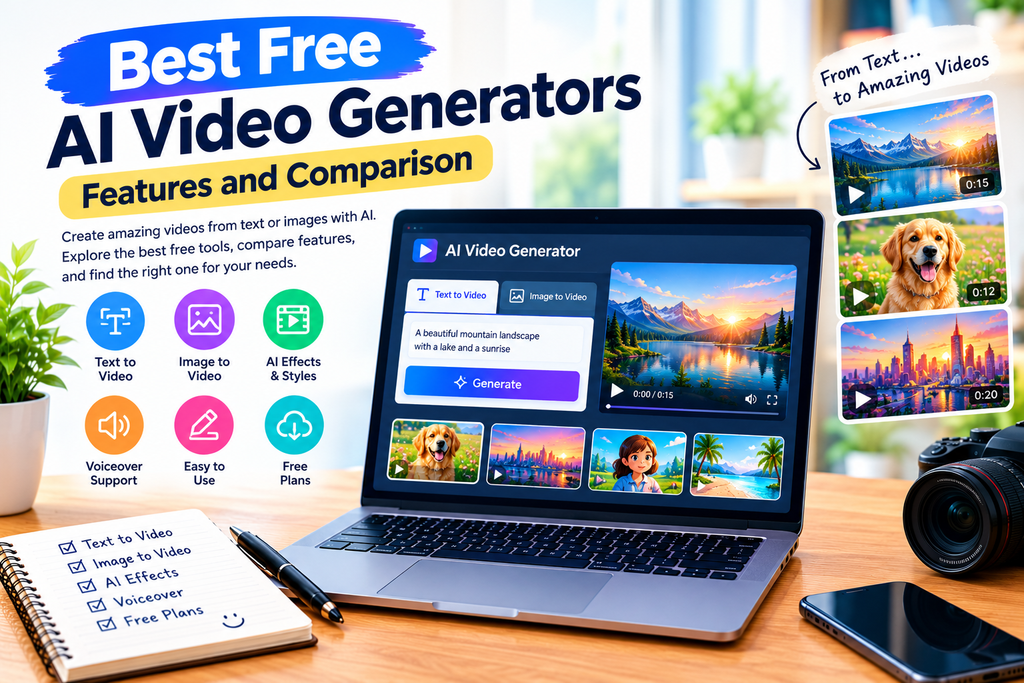
Artificial intelligence is changing the way people create videos. In the past, making a professional-looking video often required expensive equipment, editing software, technical skills, and many hours of work. Today, AI video generators can help beginners, content creators, students, bloggers, and businesses produce video clips using simple text prompts or images.
Some AI tools can turn written descriptions into animated scenes. Others can animate still images, generate video backgrounds, create voiceovers, or help edit existing footage. These features can make video production more accessible to people who have little or no editing experience.
However, not every AI video generator offers the same features. Some provide limited free credits, while others restrict video length, resolution, or downloads. Certain free plans may also add a watermark.
In this guide, we will explore some popular AI video generators, compare their features, explain their limitations, and show you how to choose the right tool for your needs.
What Is an AI Video Generator?
An AI video generator is a software tool that uses artificial intelligence to create or modify video content.
Depending on the tool, you may be able to enter a written prompt, upload an image, or provide existing footage. The AI system then generates a video or helps transform the content into a different visual style.
For example, you could enter a prompt such as:
“Create a cinematic video of a small wooden cabin beside a beautiful mountain lake at sunrise, with gentle camera movement and realistic lighting.”
A text-to-video tool may use this description to generate a short video clip.
AI video generators can be useful for:
- YouTube videos and Shorts
- Educational content
- Social media posts
- Marketing videos
- Product demonstrations
- Animated stories
- Website and blog visuals
- Creative experiments and presentations
The exact results depend on the AI model, prompt quality, available settings, and free-plan restrictions.
How Do AI Video Generators Work?
Most AI video generators follow a relatively simple process.
1. Enter a Text Prompt
Describe the scene you want to create. Include the subject, environment, movement, lighting, camera angle, and visual style.
2. Upload an Image (Optional)
Some tools allow you to upload a photograph, illustration, or AI-generated image and animate it. This is commonly called image-to-video generation.
3. Generate the Video
The AI model interprets your instructions and creates a video clip. Generation may take from a short time to several minutes, depending on the tool and demand.
4. Review the Result
Check whether the movement, objects, faces, background, and overall scene match your expectations. You may need to try different prompts or generate several versions.
5. Edit and Export
If supported, adjust the clip, combine it with other footage, add narration or music, and export the final video.
Remember that AI-generated videos may contain visual errors, unnatural movement, or inconsistencies. Always review the result before publishing it.
Best Free AI Video Generators
The following tools offer different approaches to AI video creation. Their free features and availability can change, so check the current terms on each official website before starting a project.
1. Google Vids
Google Vids is a video creation tool designed to help users create and edit videos for presentations, work, and storytelling. Google announced additional AI-powered video generation capabilities in April 2026, including access to Veo-powered video clips at no cost for users under the announced offering. Availability and usage limits may depend on the account and current product terms. Google’s announcement.
Key features
- Create and edit video projects.
- Use AI-powered video generation where available.
- Build presentations and explainers.
- Organize visual scenes into a video.
- Combine video with other presentation elements.
Best for: People who want to create explainers, presentations, or workplace videos.
Limitations: AI features and usage allowances can vary. Check your account to see which generation features are available.
2. Runway
Runway is an AI creative platform offering video generation, image tools, and video editing features. It supports workflows that begin with a text prompt, image, or existing video, depending on the selected model. Official Runway AI video generator.
Key features
- AI-powered video creation and editing.
- Image-based creative workflows.
- Tools for refining or extending video projects.
- Multiple generative models and creative tools.
Best for: Creators who want to experiment with AI filmmaking and advanced visual effects.
Free-plan limitations: Runway’s published Free plan includes 125 one-time credits, which do not refresh after use. Its official help page also states that videos generated on the Free plan feature a Runway watermark. Runway Free plan details.
3. Canva AI Video Generator
Canva is a popular design platform that combines templates, graphics, presentations, and video editing. Its AI video capabilities can help users create video clips and incorporate them into broader designs.
Key features
- Video editing with a visual interface.
- Templates for social media and presentations.
- Text, graphics, and other design elements.
- AI-powered video creation for eligible plans.
- Tools to combine clips with other content.
Best for: Beginners, bloggers, social media managers, and people creating videos alongside graphics.
Free-plan limitations: Canva’s AI video-generation features are not necessarily available to every Free-plan user. Its official page says that the Create a Video Clip feature is available in limited amounts to Pro, Business, Enterprise, and Nonprofit users. Canva AI video generator.
4. Adobe Firefly
Adobe Firefly offers generative AI features for creative work, including video-related capabilities. It may suit creators who want to experiment with AI-generated visual content and integrate it into a broader creative workflow.
Key features
- AI tools for creative content.
- Video-related generation and editing features, depending on availability.
- Integration with Adobe’s creative ecosystem.
- Options designed for visual storytelling.
Best for: Designers and creators already familiar with Adobe products.
Limitations: Available features, credits, and export options depend on the current plan. Review the official Firefly website before relying on a particular feature for a project.
Official website: https://firefly.adobe.com/
5. Pika
Pika is an AI video creation platform designed for generating creative clips and transforming visual ideas into motion. Depending on the available tools, users can experiment with different styles and effects.
Key features
- AI-assisted video creation.
- Creative effects and visual transformations.
- Short-form content workflows.
- Tools for experimenting with imaginative scenes.
Best for: Creators making short, stylized videos and visual experiments.
Limitations: Free credits, watermark policies, export quality, and commercial-use rights can change. Check the current plan details before creating content for a monetized channel.
Official website: https://pika.art/
6. InVideo AI
InVideo AI focuses on helping users turn ideas and scripts into videos. It can be useful for content that combines narration, scenes, and other video elements.
Key features
- Video creation from text instructions.
- Script-based video workflows.
- Support for assembling visual scenes.
- Tools for producing explainers and promotional content.
Best for: People who want to make narrated videos, explainers, and marketing content.
Limitations: Free usage, exports, and watermark conditions may differ by plan. Review the terms before publishing videos commercially.
Official website: https://invideo.io/
Comparison of AI Video Generators
The following table summarizes the main use cases rather than ranking every tool by output quality.
| Tool |
|---|
| Google Vids |
|---|
| Runway |
|---|
| Canva |
|---|
| Adobe Firefly |
|---|
| Pika |
|---|
| InVideo AI |
|---|
| Main use |
|---|
| Video projects and AI-assisted creation |
|---|
| Generative video and creative editing |
|---|
| Video editing and design |
|---|
| Generative creative workflows |
|---|
| Creative AI video clips |
|---|
| Script-based video creation |
|---|
| Suitable for |
|---|
| Presentations and explainers |
|---|
| Filmmaking experiments |
|---|
| Beginners and social media |
|---|
| Designers and visual creators |
|---|
| Short, stylized videos |
|---|
| Narrated content and explainers |
|---|
There is no single best tool for every creator. Your choice should depend on the type of video you want to make, how often you need to generate videos, and whether you need watermark-free commercial exports.
Text-to-Video vs. Image-to-Video
Before choosing an AI video generator, understand these two common methods.
Text-to-Video
Text-to-video generation creates a clip from a written description.
For example:
“An orange cat walking slowly through a sunny garden, butterflies flying nearby, soft morning light, realistic cinematic style.”
The AI model uses the prompt to create a moving scene.
This method is useful when you do not have a starting image and want to generate a scene from scratch.
Image-to-Video
Image-to-video generation begins with an existing image. The AI model adds movement or animates selected elements.
For example, you could upload an illustration of a waterfall and ask the tool to animate the flowing water, drifting clouds, and moving leaves.
This method can be helpful for:
- Animating illustrations
- Creating moving backgrounds
- Bringing landscape images to life
- Making short visual sequences for social media
Image-to-video generation does not guarantee that every part of the original image will remain unchanged. Review the result for unwanted distortions.
How to Write Better AI Video Prompts
A clear prompt can help you get results closer to your idea.
Instead of writing only “a beautiful forest,” describe the scene in more detail.
A useful prompt structure is:
Subject + action + setting + camera movement + lighting + style
For example:
“An adventurous hiker walking along a narrow forest trail, tall green trees surrounding the path, slow forward camera movement, warm sunlight passing through the leaves, realistic cinematic style, natural colors.”
Consider these tips:
- Describe the subject clearly. Identify the person, animal, object, or environment.
- Include movement. Explain what should move and how.
- Choose a camera angle. Try a close-up, wide shot, aerial view, or slow tracking shot.
- Describe the lighting. Mention soft daylight, sunset, dramatic shadows, or studio lighting.
- Keep the scene focused. Too many unrelated actions may produce inconsistent results.
- Generate and refine. If the first output is incorrect, adjust one or two prompt details and try again.
Are Free AI Video Generators Really Free?
Some AI video tools provide free access, but “free” does not always mean unlimited use.
Common restrictions include:
- A limited number of credits.
- Credits that do not renew.
- Daily or monthly generation limits.
- Short maximum video lengths.
- Lower output resolution.
- Watermarks on exported videos.
- Restricted access to advanced models.
- Limits on commercial use.
For example, Runway publishes a one-time allocation of 125 credits on its Free plan and states that Free-plan videos have a watermark. Canva, by contrast, restricts its Create a Video Clip feature to certain paid and eligible organizational plans. These differences show why you should read the official plan details instead of relying on the word “free” alone.
If you plan to publish videos on YouTube or use them for a business, confirm the licensing terms, watermark policy, and export permissions before investing time in a workflow.
Can You Use AI-Generated Videos on YouTube?
AI-generated videos can be part of a YouTube content strategy, but using AI does not automatically make a video suitable for monetization.
Focus on creating videos that offer genuine value to viewers. For example, add original narration, useful explanations, storytelling, meaningful editing, or educational context rather than publishing large numbers of nearly identical clips.
Before publishing:
- Check the tool’s commercial-use terms.
- Use music, images, and sound effects that you are allowed to use.
- Avoid copying another creator’s work.
- Review generated content for mistakes.
- Follow YouTube’s disclosure requirements when applicable, including requirements for realistic altered or synthetic content.
- Review YouTube’s current monetization policies.
AI is a production aid, not a replacement for originality, accuracy, or audience value.
Common Mistakes to Avoid
1. Using Vague Prompts
A short, unclear prompt may not communicate the scene you want. Add specific details about movement, setting, and visual style.
2. Expecting Unlimited Free Generations
Some free plans provide only a one-time credit allocation. Check how credits work before starting a large project.
3. Ignoring Watermarks
A tool may allow free generation but restrict watermark-free exports to paid plans. Verify this before creating a complete video.
4. Publishing Without Reviewing
AI-generated videos can contain inconsistent objects, unnatural movement, or other visual errors. Watch the entire clip before uploading it.
5. Ignoring Licensing
Do not assume that every output can be used commercially simply because it was generated by AI. Read the relevant platform terms.
Frequently Asked Questions
1. What is the best free AI video generator for beginners?
Canva may be convenient for users who want a visual editing interface, while Google Vids may suit presentations and explainers. The best choice depends on which AI features are available to your account.
2. Can I create a video from text for free?
Some platforms offer limited text-to-video generation or free trials. Availability and credit allowances vary, so check the current official plan before starting.
3. Can AI turn an image into a video?
Yes. Image-to-video tools can animate an uploaded picture by adding movement to objects, characters, or backgrounds. Results vary by model and input image.
4. Do free AI video generators add watermarks?
Some do. Runway explicitly states that its Free-plan videos have a watermark. Other platforms have different rules, so check their current export policies.
5. Can I monetize AI-generated videos?
Potentially, yes, but monetization depends on the platform’s policies, the rights to the content, and the originality and value of your videos. AI generation alone does not guarantee approval.
6. Are AI video generators safe to use?
Use reputable services, read their privacy policies, and avoid uploading confidential or sensitive material unless you understand how the service handles it.
Conclusion
The best free AI video generators can help creators explore video production without immediately investing in expensive software. Google Vids, Runway, Canva, Adobe Firefly, Pika, and InVideo AI offer different approaches to video creation, from AI-assisted editing to generative and script-based workflows.
Before choosing a tool, compare its actual free allowance, supported inputs, export quality, watermark rules, and commercial-use terms. These details are often more important than promotional claims.
Start with a small project, experiment with clear prompts, and review each result carefully. With practice, AI video tools can become a useful part of a workflow for YouTube, social media, education, and creative projects.
Editorial note: AI tools, free-plan limits, and licensing terms can change. Always verify current details on each provider’s official website before use.