What Is Canva AI? A Beginner’s Guide to AI Design
Creating professional-looking graphics used to require design experience and specialized software. Today, artificial intelligence is making many design tasks easier for beginners.
Canva is a popular online design platform, and its AI-powered features can help users create, edit, and improve visual content using simple instructions.
With Canva AI, users can explore ideas, generate design elements, create presentations, write content, and speed up repetitive design tasks. The exact AI features available can depend on the account, plan, region, and current Canva product offerings.
If you are new to AI-powered design, you may be wondering: What is Canva AI? How does it work? Can beginners use it? And what can you actually create with it?
This beginner-friendly guide explains Canva AI, how to get started, practical uses, prompt examples, limitations, and tips for using AI responsibly.
1. What Is Canva AI?
Canva AI refers to artificial intelligence-powered tools and features available within the Canva design platform.
These tools are designed to help users complete creative and productivity tasks more quickly. Depending on the features available, you may be able to use AI to generate or transform visual content, write or rewrite text, create presentation ideas, and assist with other design tasks.
Instead of manually creating everything from scratch, you can describe what you want and use AI-assisted tools to generate a starting point.
For example, you might ask for:
“Create a modern presentation design for a beginner-friendly introduction to artificial intelligence.”
Canva can then help you develop a design concept that you can review and customize.
The important point is that Canva AI is a design assistant. You should still review the generated result and make changes that match your brand, audience, and purpose.
2. How Does Canva AI Work?
Canva AI uses artificial intelligence to understand instructions and assist with creative tasks.
A simplified workflow looks like this:
- You describe what you want.
- The AI interprets your instructions.
- Canva generates or suggests content or design elements.
- You review the result.
- You customize the design.
- You export or publish the finished work.
For example, imagine that you want to create a social media graphic about productivity.
Instead of starting with a completely blank design, you could describe the topic, audience, visual style, and desired format.
The AI-generated result can then become a starting point that you edit.
This approach can save time, but AI-generated designs are not automatically perfect. You should always check text, images, layout, facts, and branding before using the final design.
3. How to Get Started With Canva AI
Getting started with Canva is relatively simple, even if you have no previous design experience.
Step 1: Open Canva
Visit the official Canva website: https://www.canva.com/
Create an account or sign in using an available sign-in option.
Canva’s interface and available features may change over time.
Step 2: Choose a Design Type
After signing in, choose the type of project you want to create.
For example, you might create:
- A presentation
- A social media post
- A blog graphic
- A poster
- A thumbnail
- A flyer
- A document
Choose a format that matches your final goal.
Step 3: Explore the AI Features
Depending on your account and current Canva interface, look for available AI-powered tools or features within the editor.
The exact location and names of these tools can change.
You may find AI assistance for writing, images, design generation, editing, or other creative tasks.
Step 4: Describe Your Idea
Give the AI clear instructions.
For example:
“Create a clean educational graphic about AI tools for beginners. Use a modern technology theme and leave enough space for a short headline.”
The more useful context you provide, the easier it can be to create a suitable starting point.
Step 5: Edit the Result
Do not simply accept the first result.
Change the colors, fonts, spacing, images, text, and layout as necessary.
Your final design should look intentional and should communicate your message clearly.
4. Key Features of Canva AI
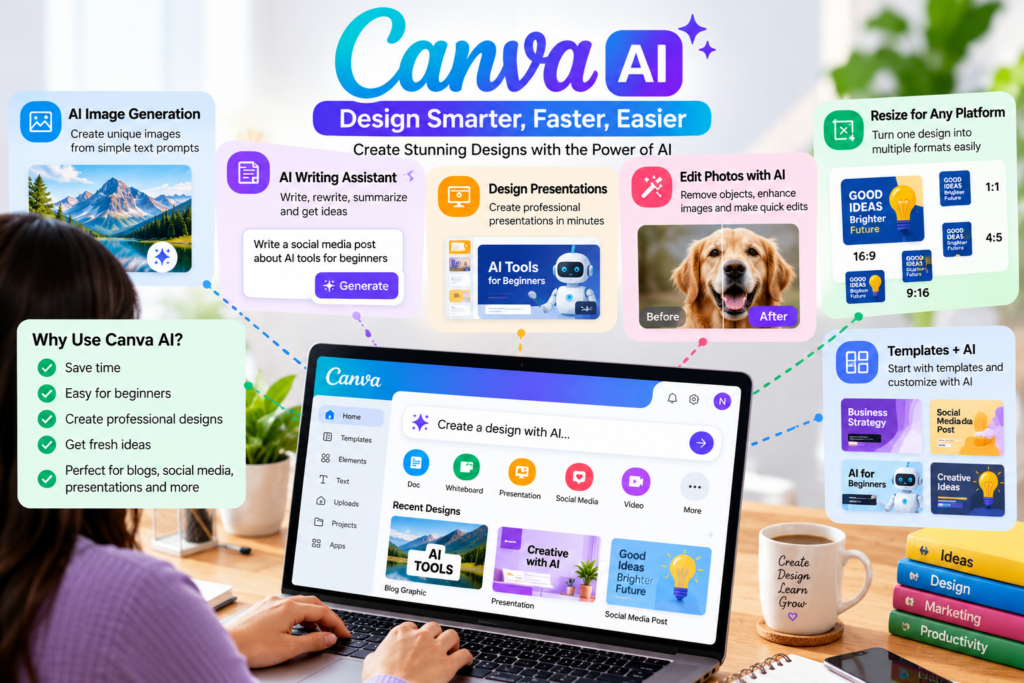
Canva offers a growing collection of AI-powered features. The exact tools available can vary by account and may change over time.
1. AI-Powered Design Assistance
AI can help users develop design ideas based on a description.
This can be particularly useful when you know what you want to communicate but do not know how to begin the design.
For example:
“Create a professional presentation cover for an article about artificial intelligence.”
You can then customize the result.
2. AI Writing Assistance
AI-powered writing tools can help with tasks such as:
- Writing short descriptions
- Rewriting sentences
- Creating headlines
- Summarizing text
- Adjusting tone
- Brainstorming ideas
For example:
“Write five short and engaging headlines for a beginner-friendly AI tutorial.”
Review the generated text before publishing it.
3. AI Image Generation
Depending on the available Canva features, users may be able to generate images from text descriptions.
For example:
“A clean modern illustration of a laptop with AI icons on a bright desk, suitable for an educational technology blog.”
AI-generated images can be useful for creating original visual concepts, but users should still review them carefully and make sure their intended use follows applicable licensing and platform rules.
4. Image Editing
AI-assisted tools can help with certain image editing tasks.
Depending on current features, this may include removing unwanted elements, modifying parts of an image, or making other visual adjustments.
Always inspect the final image carefully because automated edits can sometimes produce unexpected results.
5. Presentation Assistance
Creating a presentation can take considerable time because you need to plan both the content and visual layout.
AI-assisted Canva features can help users generate ideas or starting points for presentations.
For example:
“Create a six-slide presentation explaining AI tools to beginners. Include an introduction, common uses, examples, benefits, limitations, and a conclusion.”
You should then review every slide and adjust the content to suit your audience.
6. Content Resizing and Repurposing
Online content often needs to be adapted for different platforms.
A design created for a blog or presentation may need a different size for social media.
Canva provides tools that can help users adapt designs to different formats, with availability depending on the account and current product features.
This can save time when creating multiple versions of the same content.
5. Practical Ways to Use Canva AI
Canva AI can be useful for many everyday creative tasks.
For Bloggers
Bloggers can use Canva to create:
- Featured images
- Article graphics
- Infographics
- Social media posts
- YouTube thumbnails
- Presentation slides
For example:
“Create a 16:9 educational blog graphic explaining five practical uses of AI tools.”
After generating the design, replace generic content with accurate information from your article.
For Students
Students can use Canva to create visual study materials.
Possible projects include:
- Presentation slides
- Study posters
- Infographics
- Revision charts
- Project covers
Example prompt:
“Create a simple educational infographic explaining the water cycle for high school students.”
Always check educational information before submitting a project.
For Small Businesses
Small business owners can use Canva to create marketing materials without hiring a designer for every small task.
Examples include:
- Promotional graphics
- Social media posts
- Product presentations
- Flyers
- Business announcements
Example prompt:
“Create a clean promotional social media graphic for a small coffee shop announcing a weekend offer.”
Before publishing, check pricing, dates, contact information, and other business details carefully.
For YouTube Creators
Canva can help creators prepare visual assets such as:
- Video thumbnails
- Channel graphics
- Presentation slides
- Short-form video graphics
- Infographics
A useful prompt might be:
“Create a high-contrast educational YouTube thumbnail about five AI tools beginners should know.”
Remember that thumbnails should remain readable on small screens.
For Social Media
Social media creators can use Canva to prepare multiple visual posts around one topic.
For example, an AI tools article could be turned into:
- A quote graphic
- A five-point infographic
- A carousel
- A short video
- A promotional image
This makes it easier to reuse original ideas across different formats.
6. How to Write Better Canva AI Prompts
A good prompt can make your design process easier.
Instead of simply writing:
“Make an AI image.”
Give Canva more useful information.
1. Describe the Subject
Explain what the design should show.
Example:
“Create an illustration of a laptop displaying an AI assistant.”
2. Describe the Audience
Tell the AI who will see the design.
Example:
“Design it for beginners who are learning about artificial intelligence.”
3. Describe the Style
You can mention the visual direction you want.
For example:
“Use a clean, modern, professional technology style with simple icons and plenty of white space.”
4. Mention the Format
Specify the intended use.
For example:
“Create a horizontal 16:9 image suitable for a blog featured image.”
5. Keep Important Text Short
If your design contains text, keep the wording concise.
Example:
“Headline: 5 Practical Uses of AI Tools”
Short text is generally easier to arrange clearly in a visual design.
7. Canva AI Prompt Examples for Beginners
Here are several prompts you can experiment with.
Blog Featured Image
“Create a clean 16:9 featured image for a beginner-friendly article about AI tools. Show a laptop, modern technology elements, and a simple professional workspace.”
Educational Infographic
“Create an educational infographic explaining five common uses of AI tools. Use simple icons, short text, and a clean layout for beginners.”
Presentation
“Create an eight-slide presentation explaining artificial intelligence to beginners. Use simple language and a professional technology theme.”
Social Media Graphic
“Create a square social media graphic about three practical ways to use AI for productivity. Make it clean, modern, and easy to read on a phone.”
YouTube Thumbnail
“Create a bold educational YouTube thumbnail about beginner AI tools. Use a simple layout, large readable headline text, and technology-themed visual elements.”
Always review AI-generated text and visual elements before publishing.
8. Canva AI Free vs. Paid Options
Canva provides different account and subscription options, and AI features may have different availability or usage limits depending on the plan.
A beginner does not necessarily need a paid plan immediately.
Before subscribing, consider:
- How often you will use Canva
- Which AI features you actually need
- Whether the free features are sufficient
- How many designs you expect to create
- Whether the additional tools justify the cost
Start with the available free features and upgrade only when you have a clear reason to do so.
Pricing, feature availability, and usage limits can change, so check Canva’s official website for current information.
9. Canva AI vs. Traditional Design
Canva AI does not completely replace traditional design skills.
Traditional design still gives you direct control over:
- Layout
- Typography
- Colors
- Branding
- Image selection
- Visual hierarchy
- Spacing
AI can speed up the process of generating ideas and starting points.
A useful workflow is:
AI generates a starting point → You review it → You customize it → You check it → You publish it.
This approach combines the speed of AI with human creativity and judgment.
10. Canva AI vs. Other AI Tools
Different AI tools are designed for different purposes.
For example, a general AI chatbot can be useful for brainstorming, writing, explanations, and planning.
An AI research tool can be useful for working with documents and sources.
Canva focuses heavily on visual design and content creation.
You do not necessarily need to choose only one tool.
For example, you might use an AI chatbot to develop an article outline, use a research tool to organize reference material, and use Canva to create the article’s visual assets.
The best tool depends on the task.
11. Limitations of Canva AI
AI-powered design tools can be useful, but they have limitations.
AI-Generated Content Can Contain Errors
Generated text may contain spelling mistakes, incorrect information, or awkward wording.
Review everything before publishing.
Designs May Look Generic
AI-generated designs can sometimes resemble common templates or visual styles.
Add your own branding, examples, colors, and creative direction to make the final design more original.
Text in Images May Need Editing
AI-generated images can sometimes contain incorrect or awkward text.
If an image contains important wording, check it carefully and consider adding the text manually using Canva’s editor.
Feature Availability Can Change
Canva’s AI tools, limits, and interface may change over time.
A feature available today may have different access rules later.
Copyright and Licensing Require Attention
Not every visual element available online can automatically be used for every purpose.
Check the licensing terms and usage rights associated with assets and generated content before using them commercially.
AI Does Not Replace Human Review
The final design should be checked by a person.
Look for incorrect information, poor alignment, unclear text, accidental visual artifacts, and anything that does not match your brand.
12. Common Mistakes Beginners Should Avoid
Mistake 1: Using Very Vague Prompts
“Make something beautiful” does not provide much useful direction.
Instead, explain the subject, audience, style, and format.
Mistake 2: Publishing the First Result
The first AI-generated design is only a starting point.
Review and improve it before publishing.
Mistake 3: Ignoring Mobile Screens
A design that looks good on a large monitor may be difficult to read on a phone.
Check your graphics at smaller sizes.
Mistake 4: Adding Too Much Text
Infographics and social graphics can become difficult to read when they contain long paragraphs.
Use short phrases and clear headings.
Mistake 5: Forgetting Brand Consistency
Using a different visual style for every post can make your website look inconsistent.
Try to maintain consistent fonts, colors, layouts, and image proportions.
13. A Simple Seven-Day Canva AI Learning Plan
You can learn Canva AI by practicing one small task each day.
Day 1: Create a simple social media graphic.
Day 2: Experiment with AI-assisted writing.
Day 3: Create a basic presentation.
Day 4: Try creating an AI-generated visual concept.
Day 5: Create an infographic.
Day 6: Repurpose one design into another format.
Day 7: Create a complete visual project from beginning to end.
The goal is not to learn every feature immediately. Focus on the features that are useful for your actual work.
Frequently Asked Questions About Canva AI
1. What is Canva AI?
Canva AI refers to AI-powered features within Canva that can assist with design, writing, image creation, editing, presentations, and other creative tasks.
2. Is Canva AI free?
Some Canva AI features may be available with free access, while others may have usage limits or require a paid plan. Check Canva’s current plan and feature information before subscribing.
3. Can beginners use Canva AI?
Yes. Canva is designed to be accessible to people without professional design experience, and AI tools can make some tasks even easier.
4. Can Canva AI create images?
Depending on the current features available to your account, Canva may provide AI-assisted image generation and editing tools.
5. Can Canva AI write content?
AI-assisted writing features can help with tasks such as brainstorming, rewriting, summarizing, and drafting short pieces of text. Always review generated content before publishing.
6. Can I use Canva AI for blog images?
Yes. Canva can be useful for creating blog featured images, infographics, diagrams, social graphics, and other visual content. Check the applicable licensing and usage terms for the assets you use.
7. Is Canva AI better than ChatGPT?
They are designed for different purposes. Canva is especially useful for visual design, while ChatGPT is a general-purpose AI assistant. You can also use them together for different parts of a project.
8. Can Canva AI replace a professional designer?
AI can make many simple design tasks easier, but professional designers still provide valuable expertise in branding, visual communication, typography, layout, and creative direction.
Final Thoughts
Canva AI can make visual content creation easier for beginners by providing AI-powered assistance with design, writing, images, presentations, and other creative tasks.
You do not need to become a professional designer before experimenting with it. Start with a simple project, give clear instructions, review the result, and customize the design to match your purpose.
The most effective approach is to treat AI as a creative assistant rather than a replacement for your own ideas and judgment.
Whether you are a blogger, student, business owner, YouTube creator, or social media user, Canva AI can be a useful tool for turning ideas into visual content more efficiently.